Before you can register conditions in the AgroVision mobile app, the conditions have to be set up in AgroVision Sows web application. Read more on how to setup your animals conditions.
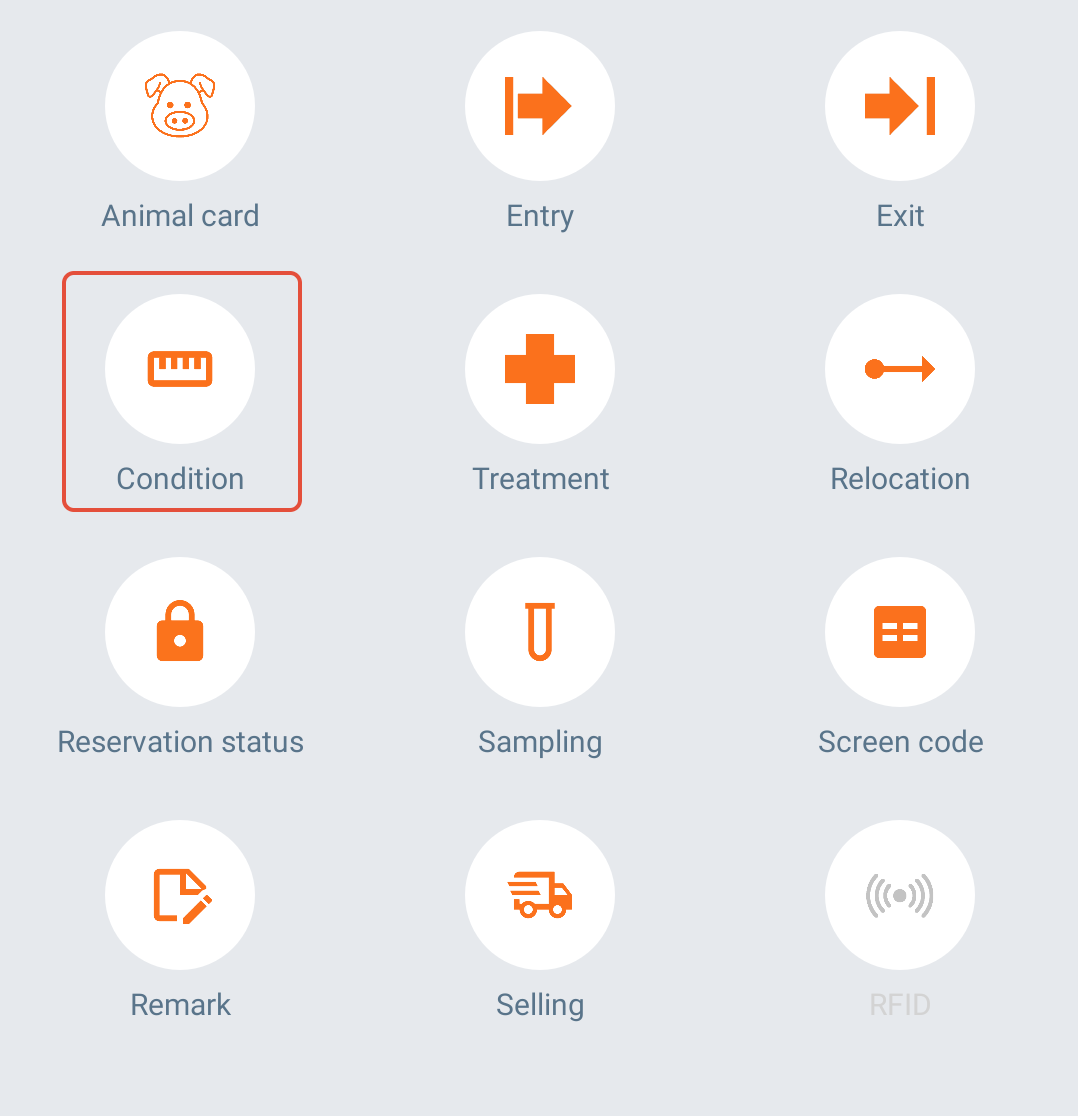
On the mobile app, click on the "Condition" icon on the main screen.
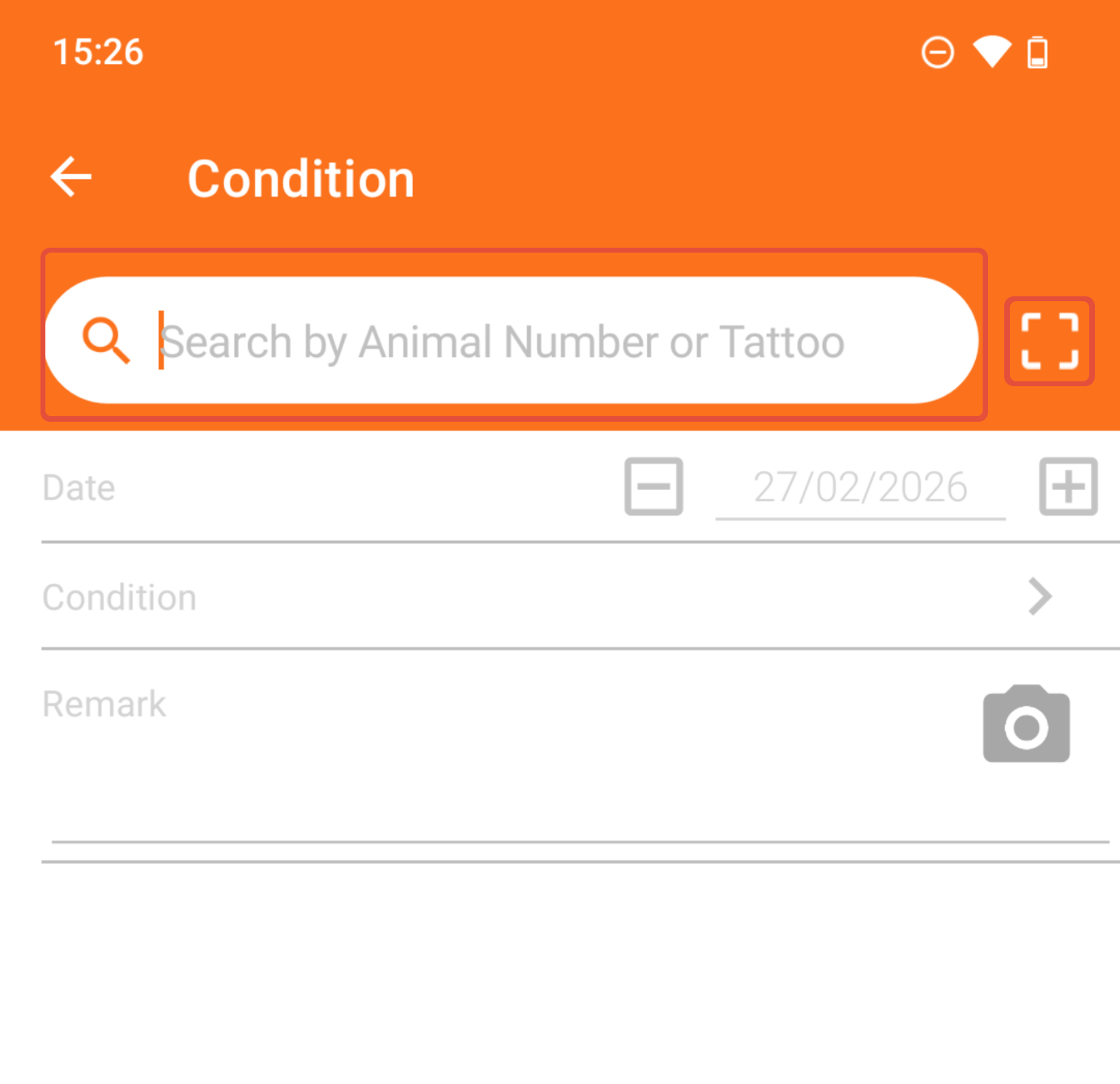
Search or scan the animal of which you want to register a condition.
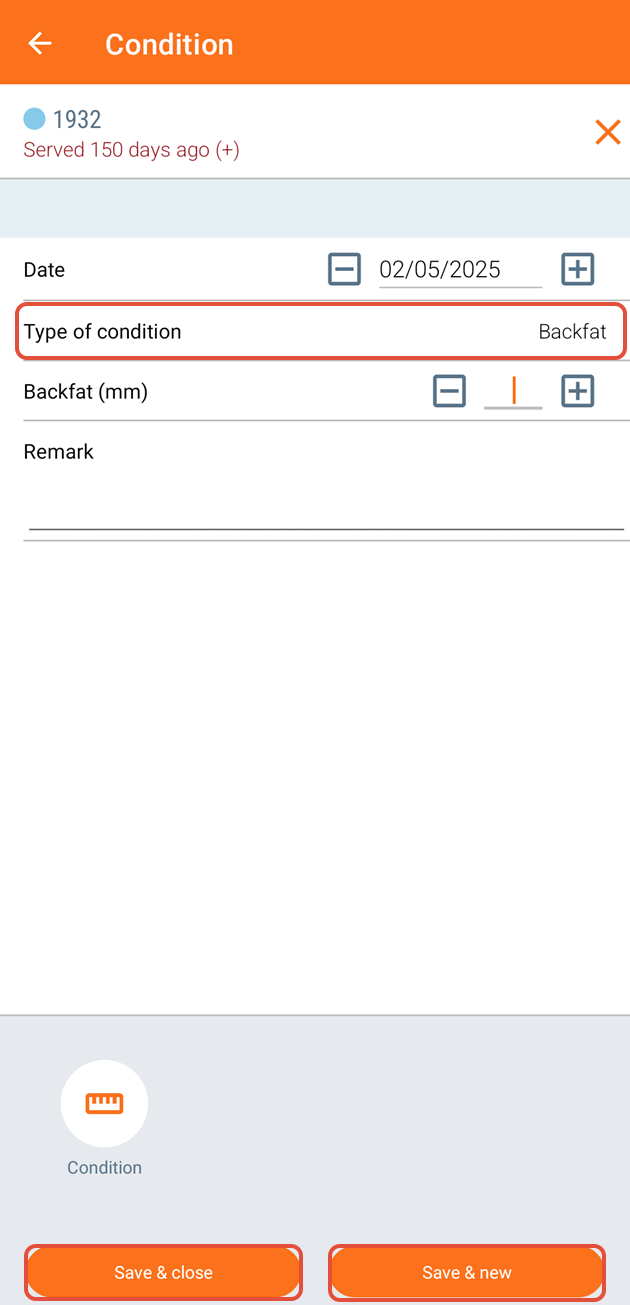
Click on "Type of condition" and select a condition from the list. When done, press "Save & close" or "Save & new".
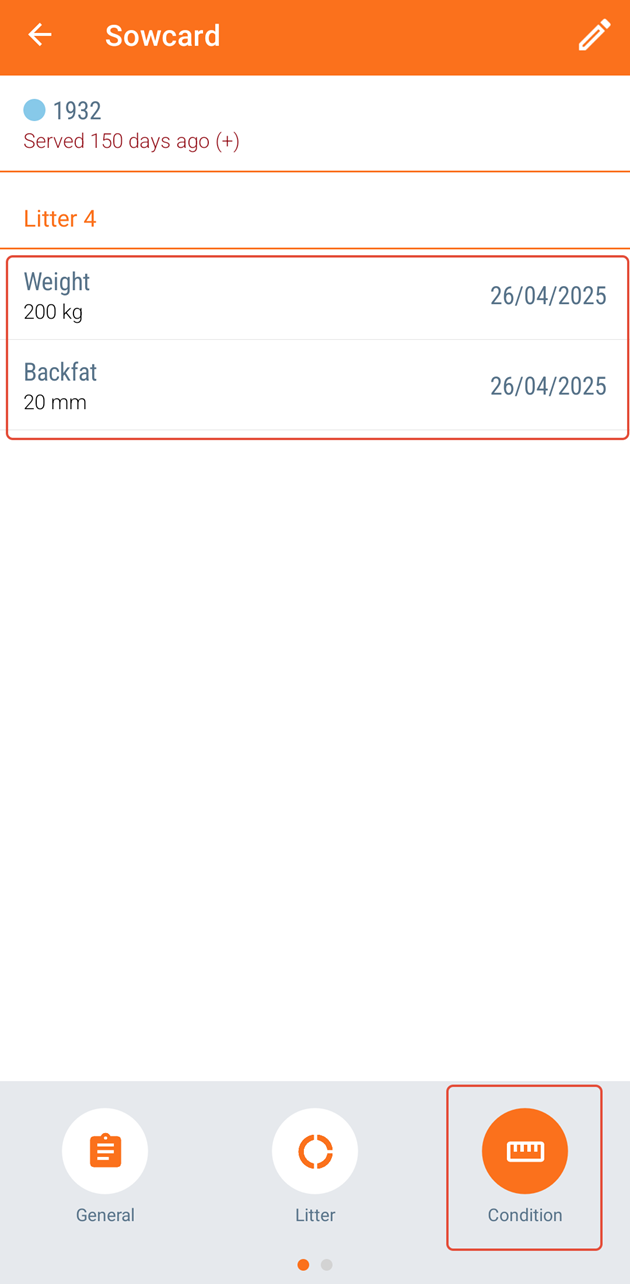
All conditions registered on an animal will be visible on the animal card by clicking on the "Conditions" icon on the bottom.
You can also use a worklist to register conditions. The worklist must be setup in the AgroVision Sows web application before it will be visible in the mobile app. Worklists on the app will be visible in the main screen, synced from the AgroVision Sows web app. Read more on how to create a worklist with condition as main event.
Was this article helpful?
That’s Great!
Thank you for your feedback
Sorry! We couldn't be helpful
Thank you for your feedback
Feedback sent
We appreciate your effort and will try to fix the article