The Condition functionality in AgroVision Sows allows you to record and monitor key traits such as weight, backfat, condition scores, or any other measurements relevant to your farm or breeding organization.
There are multiple methods available for registering conditions within the program.
Animal events
Go to "Animal event" - "Condition"
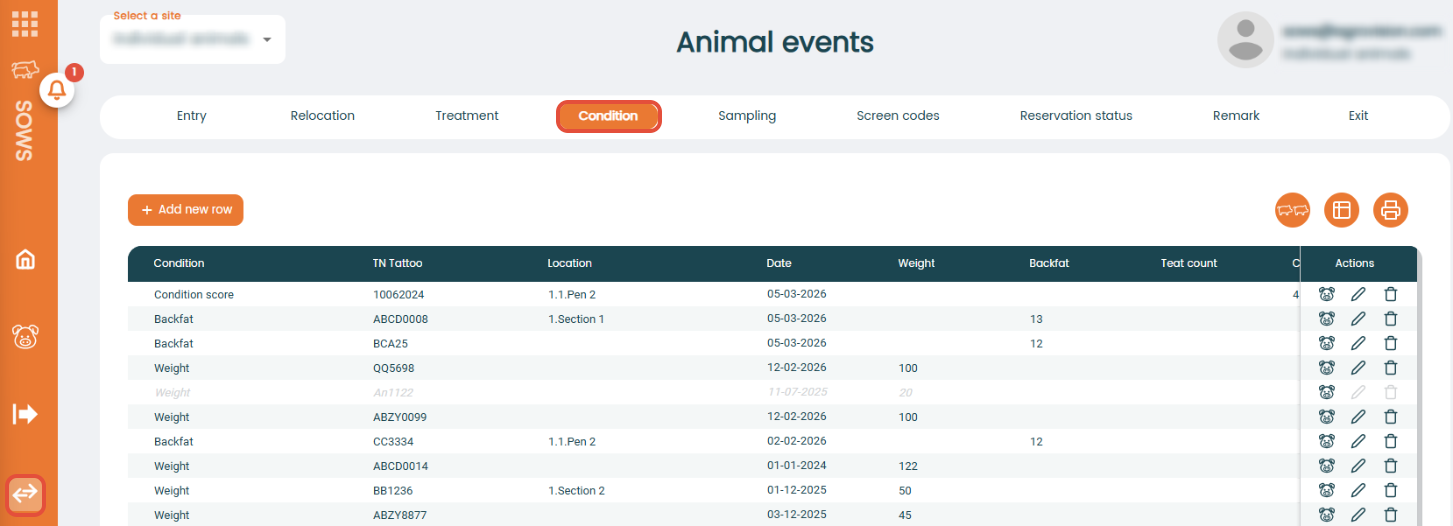
To register a new condition, press "+ Add new row" and a new empty line appears in the top of the window. Choose a condition from the drop down list.
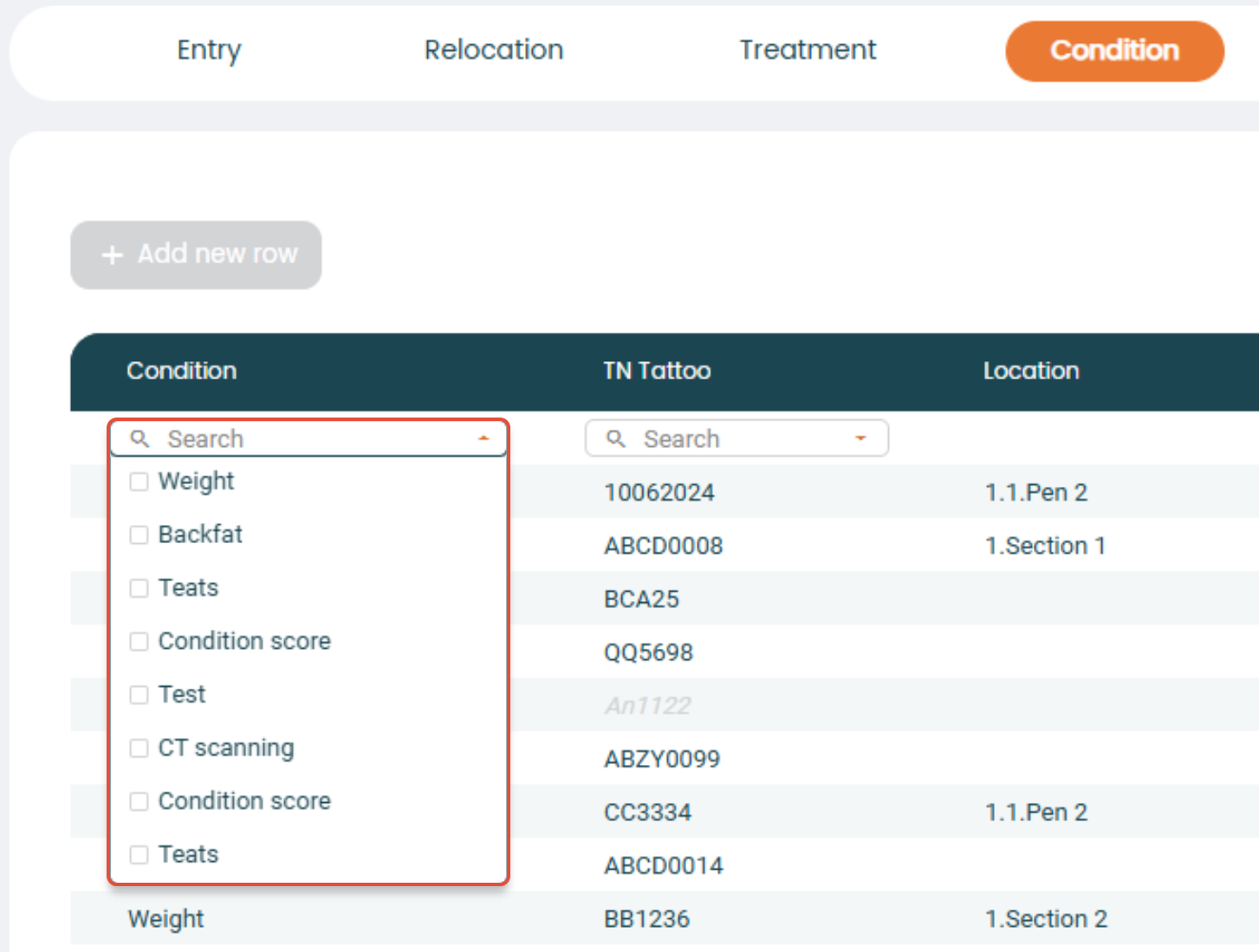
Afterwards, you enter the animal ID and the relevant information needed in the following columns.
When done, click "Save" or press enter on your keyboard.
Animal card
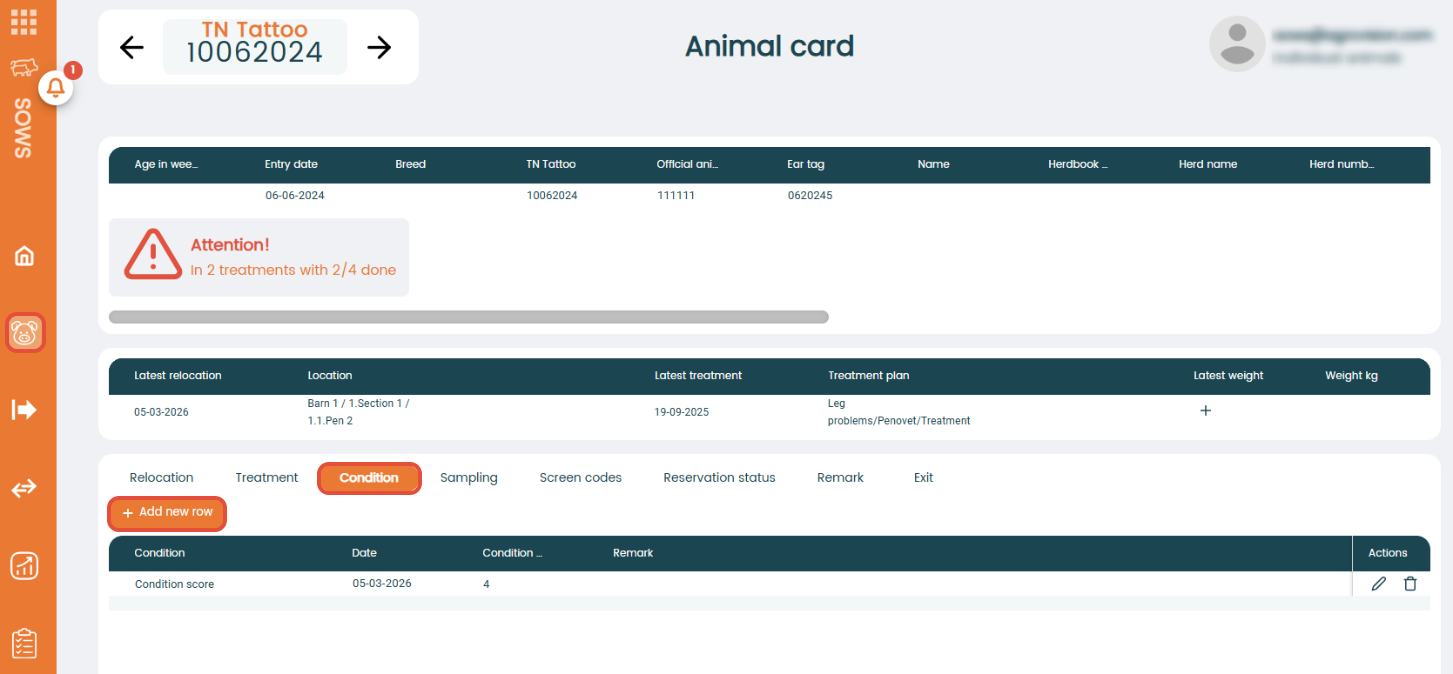
On the animal card, click on "Condition" at the bottom. Now, you see the history of entered conditions on this animal, if any are registered. To enter a new condition through the animal card, press "+ Add new row" and enter the relevant information.
Worklist
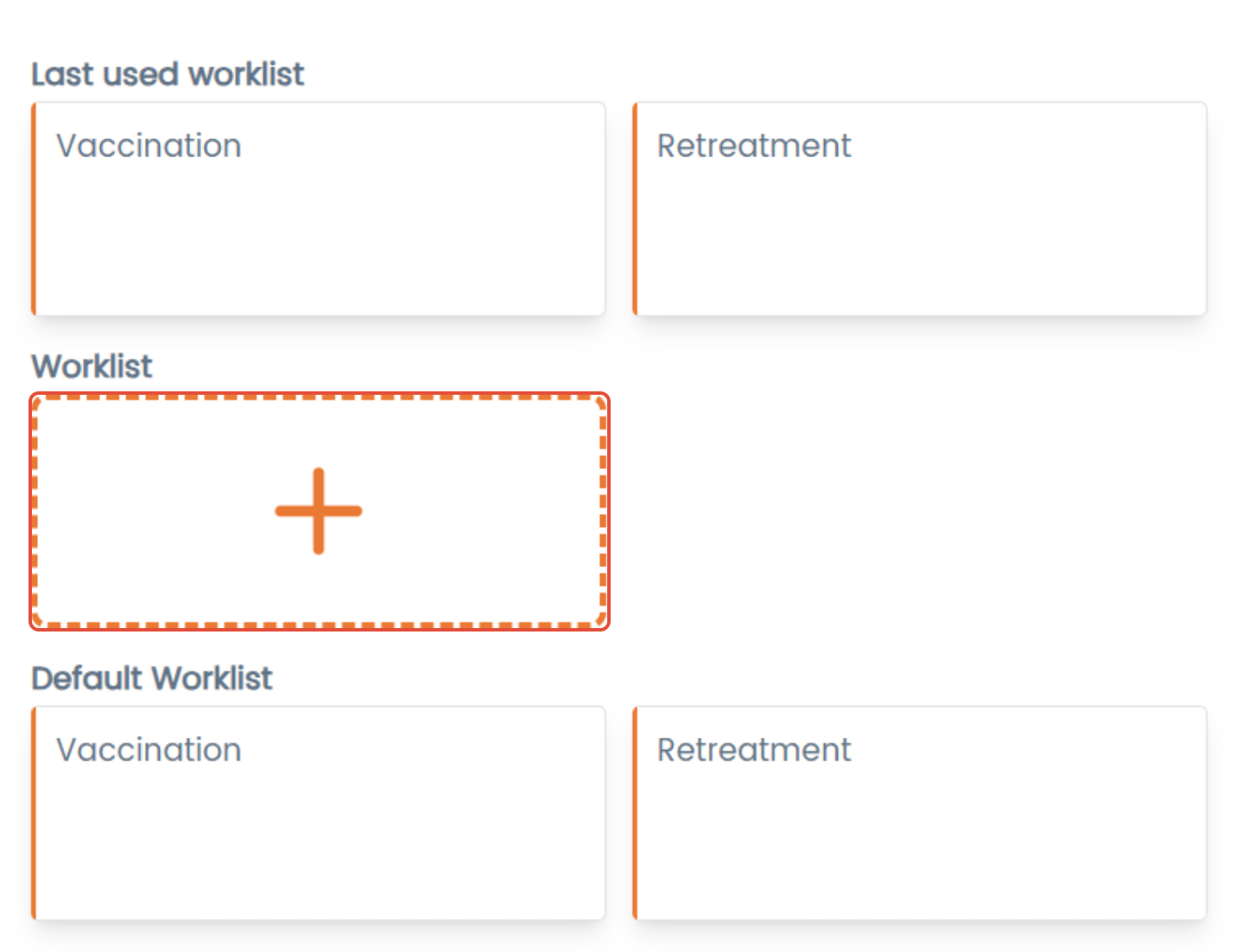
Go to "Task management" - "Worklist".
Press "+" to create a new worklist.
In the "Event selection", choose "Condition" as the main event and select a condition.
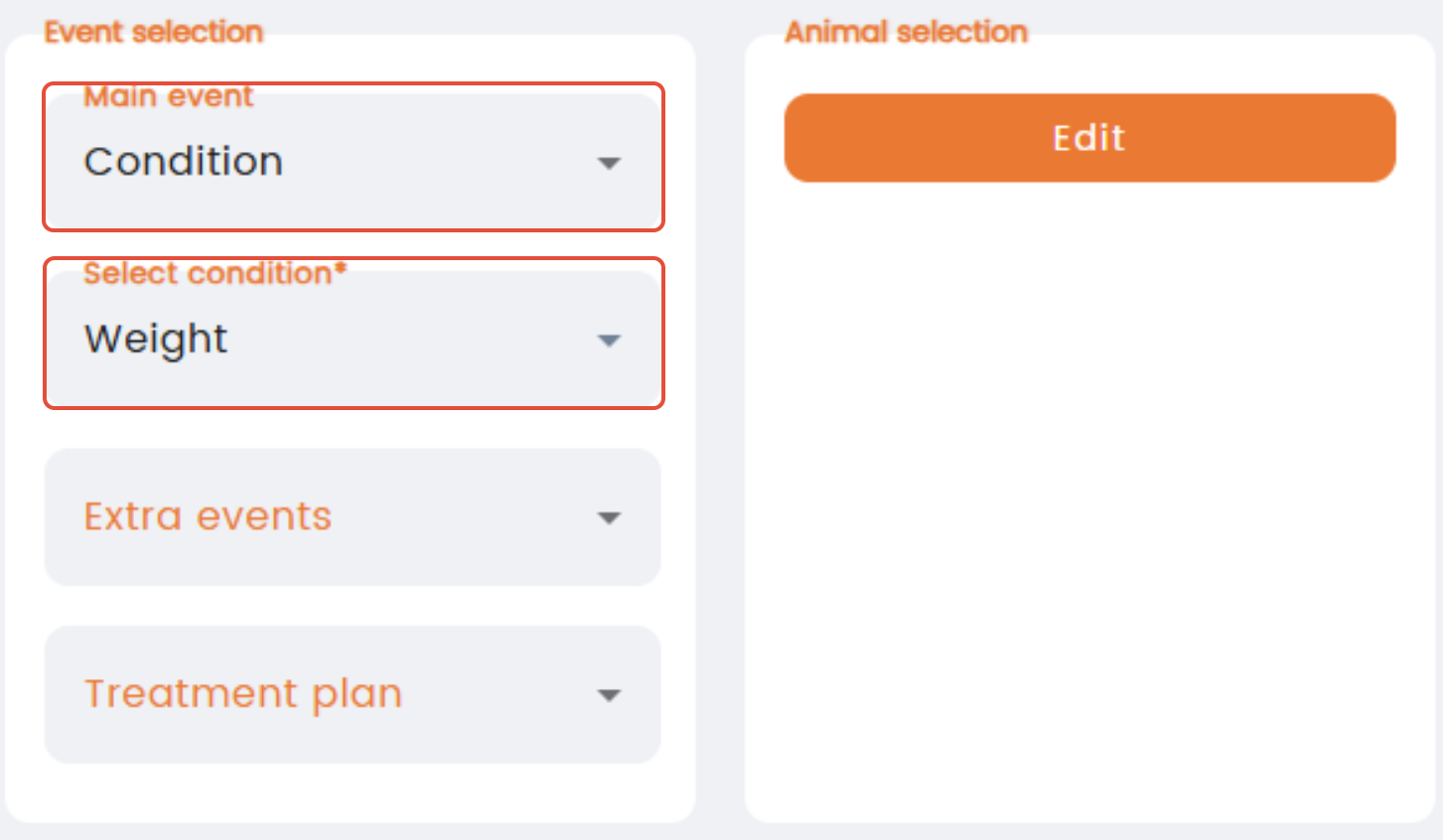
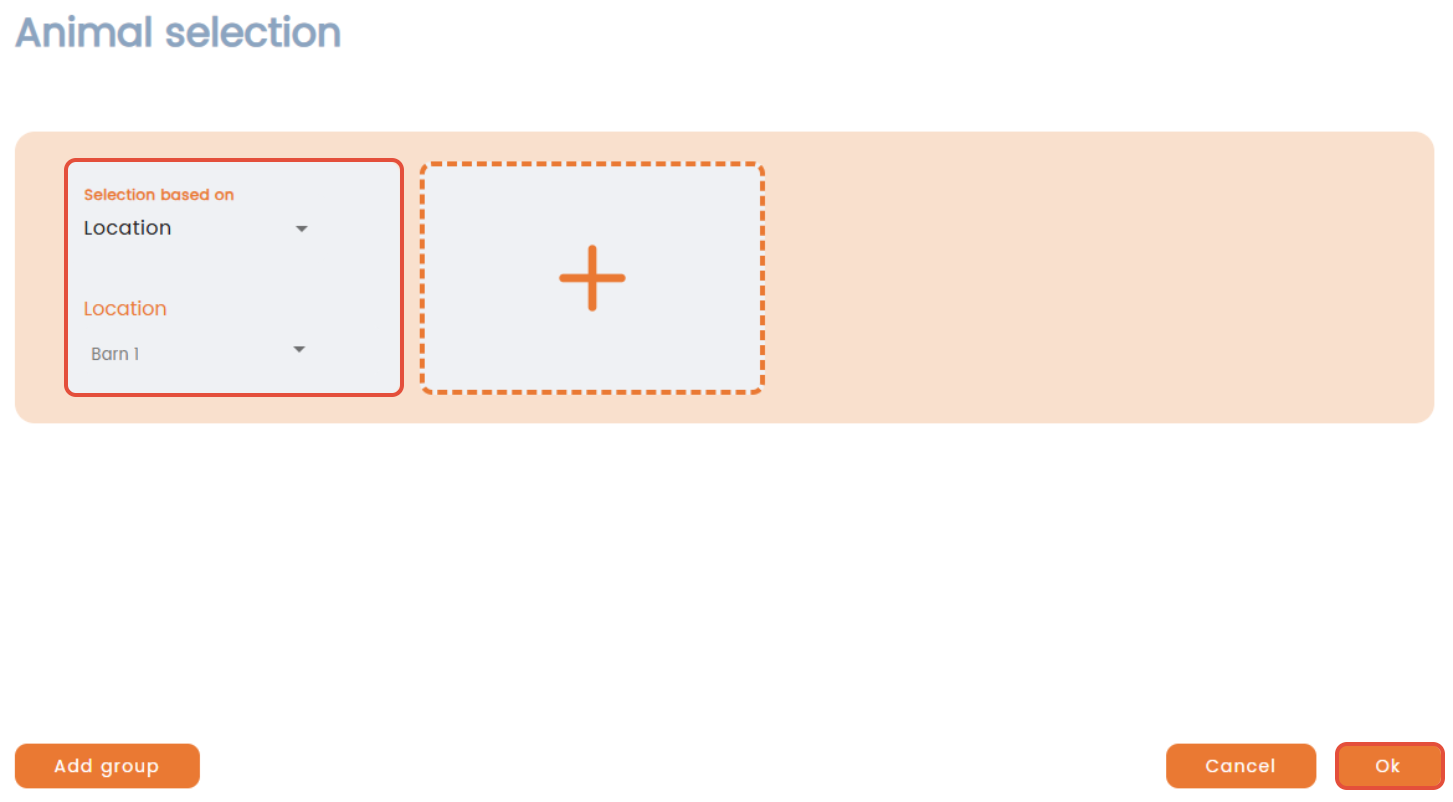
In "Animal selection", click "Edit" and choose how you want your animals to be selected to the worklist (e.g. based on location or breed etc.). Remember to specify further, which animals are being referred to.
Add another group by clicking "+", otherwise press "Ok".
Now, you can click "Get list" and the worklist will display animals that meet the criteria. You can fill in the condition by clicking on an animal and save the registration when done.
At the bottom of the worklist, the total number of animals appearing are shown.
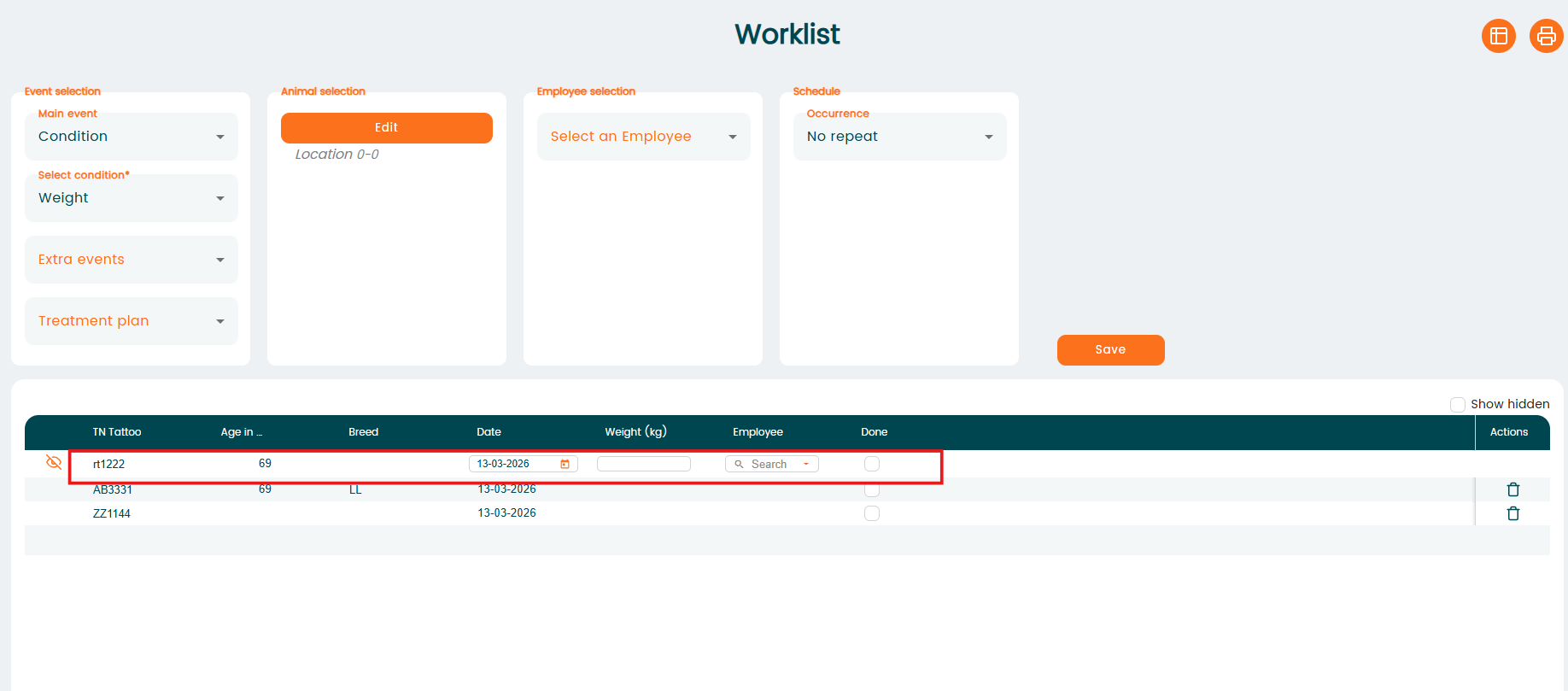
These worklists can also be synced to the mobile application.
Was this article helpful?
That’s Great!
Thank you for your feedback
Sorry! We couldn't be helpful
Thank you for your feedback
Feedback sent
We appreciate your effort and will try to fix the article