By setting up "Traits", "Types", and "Conditions", you can create customized events that help you capture consistent and structured data directly within the application. This makes it easier to analyse animal performance, share required data with breeding companies, and filter animals based on specific criteria.
This article explains how to configure the Condition settings, including how to create traits, assign condition types, and combine them into usable condition events for your animals.
Go to "Settings" - "Condition".
Trait
In the "Trait" setting, you can setup any traits or measurements. Start by clicking "+ Add new row" to start entering a new trait. Assign the trait an ID, enter a name, and select a trait type from the dropdown menu in the "Trait type" column.
Afterwards, you can choose the unit of the chosen trait (this only applies when the trait "measurement" is chosen).
In the "Format" column, you can decide how the program should display or validate numbers. If you have chosen the trait type "Score", you can enter a range of numbers (e.g. 1-100) and if you have chosen the trait type "Measurement", you can use the hashtag symbol (#) to explain how many decimal positions you would like in the number. For example, ##.# would be 22.2.
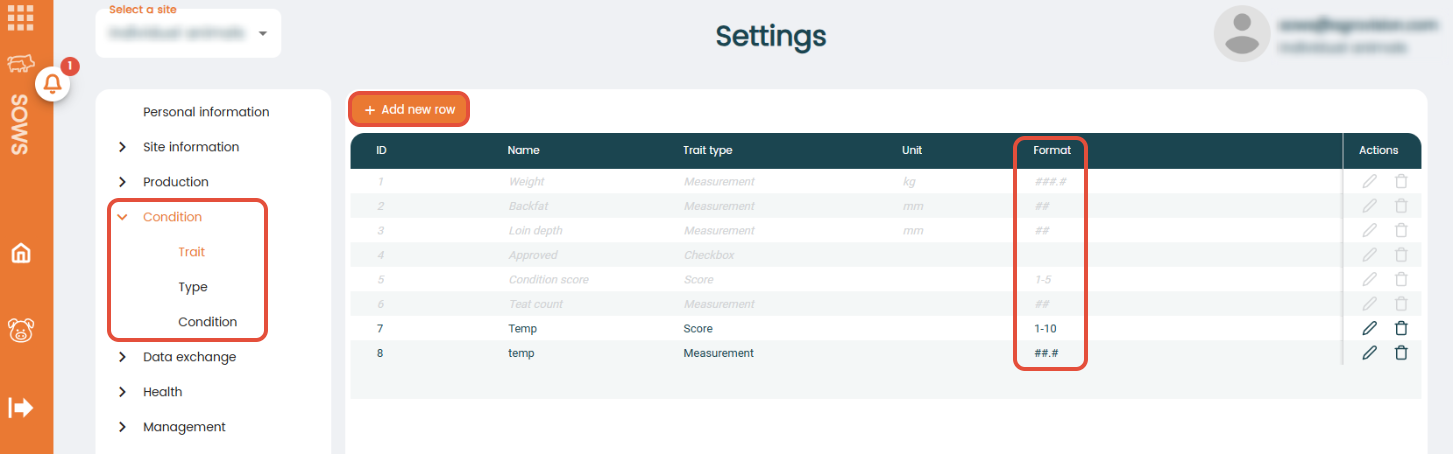
Press "Save" when done.
Type
The Types are used for 2 different outcomes:
1. With the type the user can defined if the condition needs to be sent as a specific 3rd party. For example all conditions with the T END Type will be shared with Topigs Norsvin as a T END test.
2. The type can be used for reporting purposes. If the user wants to see specific conditions of a specific Type this can be filtered for.
All conditions must have a Type assigned to them. There are default Types generated by AgroVision for general use but users can also create their own custom Types.
Condition
In the "Condition" setting, you can combine the traits and types, you have just created to create actual events that should appear in the application. To create a condition, press the "+ Add new row" icon and enter an ID and a name.
Select "Type" from the drop down menu and proceed to the "Trait" column, where you can select one or multiple traits by check marking from the drop down menu.
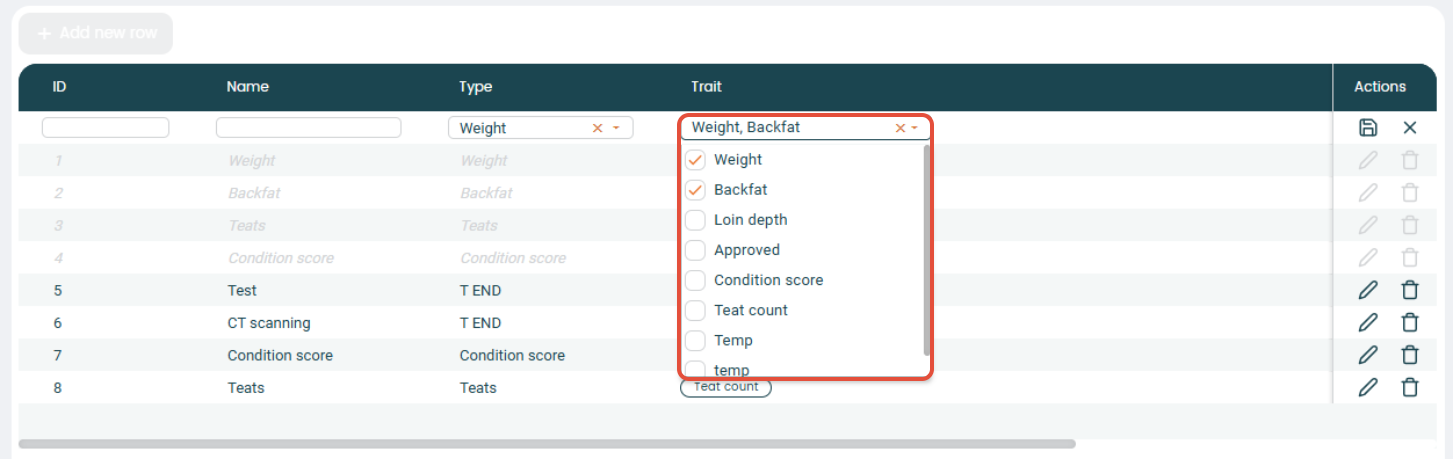
Press "Save" and your conditions are now ready to use.
Was this article helpful?
That’s Great!
Thank you for your feedback
Sorry! We couldn't be helpful
Thank you for your feedback
Feedback sent
We appreciate your effort and will try to fix the article