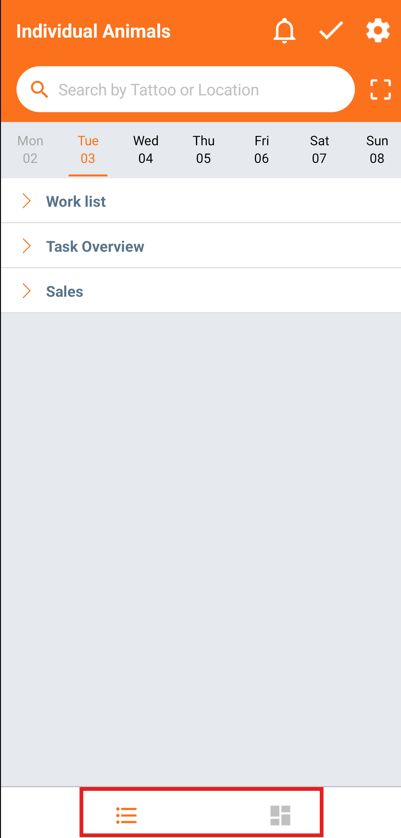
On the home screen, you will find navigation buttons in the bottom of the screen.
The Navigation button to the left shows standard work lists and your own work lists, which are set up in AgroVision Sows web application. Therefore, changes in work lists have to be changed in the web application. Once changed, simply synchronize the app and your work lists are now updated and ready to use.
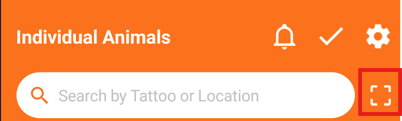
You also have a search bar in the top of the screen from where you can search for numbers and RFID to find your animal or a location. Next to the search bar, you can activate the camera to take pictures for remarks or scan QR codes.
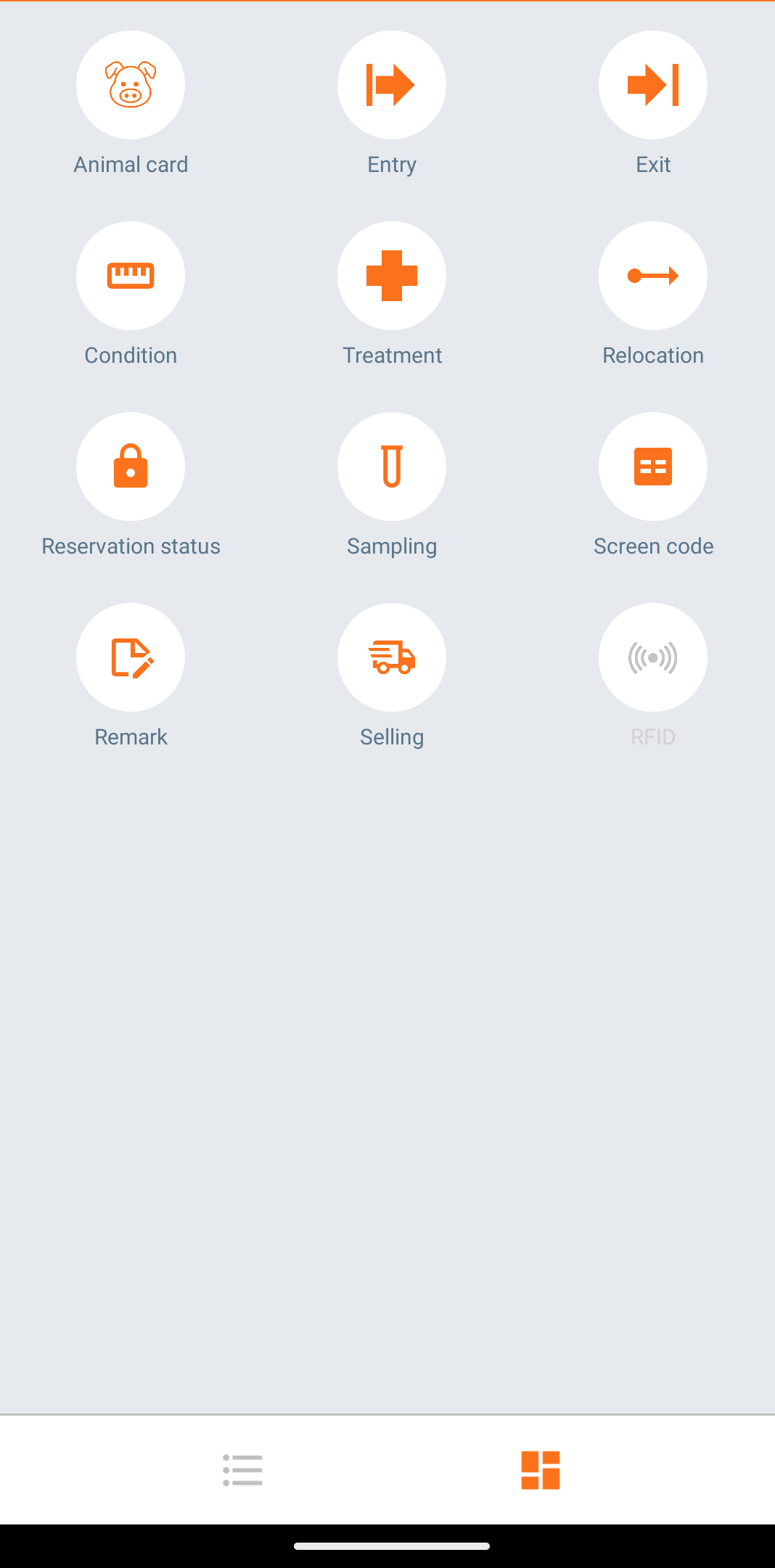
The Navigation button to the right shows all events and actions, which you can enter on individual animals.
 This feature is useful, when you want to enter a quick event and you know the animal in question instead of choosing it from a list. It is also possible to view the animal card.
Was this article helpful?
That’s Great!
Thank you for your feedback
Sorry! We couldn't be helpful
Thank you for your feedback
Feedback sent
We appreciate your effort and will try to fix the article