The "Task Overview" option helps you keep track of what needs to be done on the farm. On the selected date, you can easily see current and upcoming tasks.
If tasks are created in the web app, they will appear on the employee's mobile device after synchronization. In the mobile app, tasks are displayed on the date selected during task creation. Tasks from past dates will not appear in the mobile app.
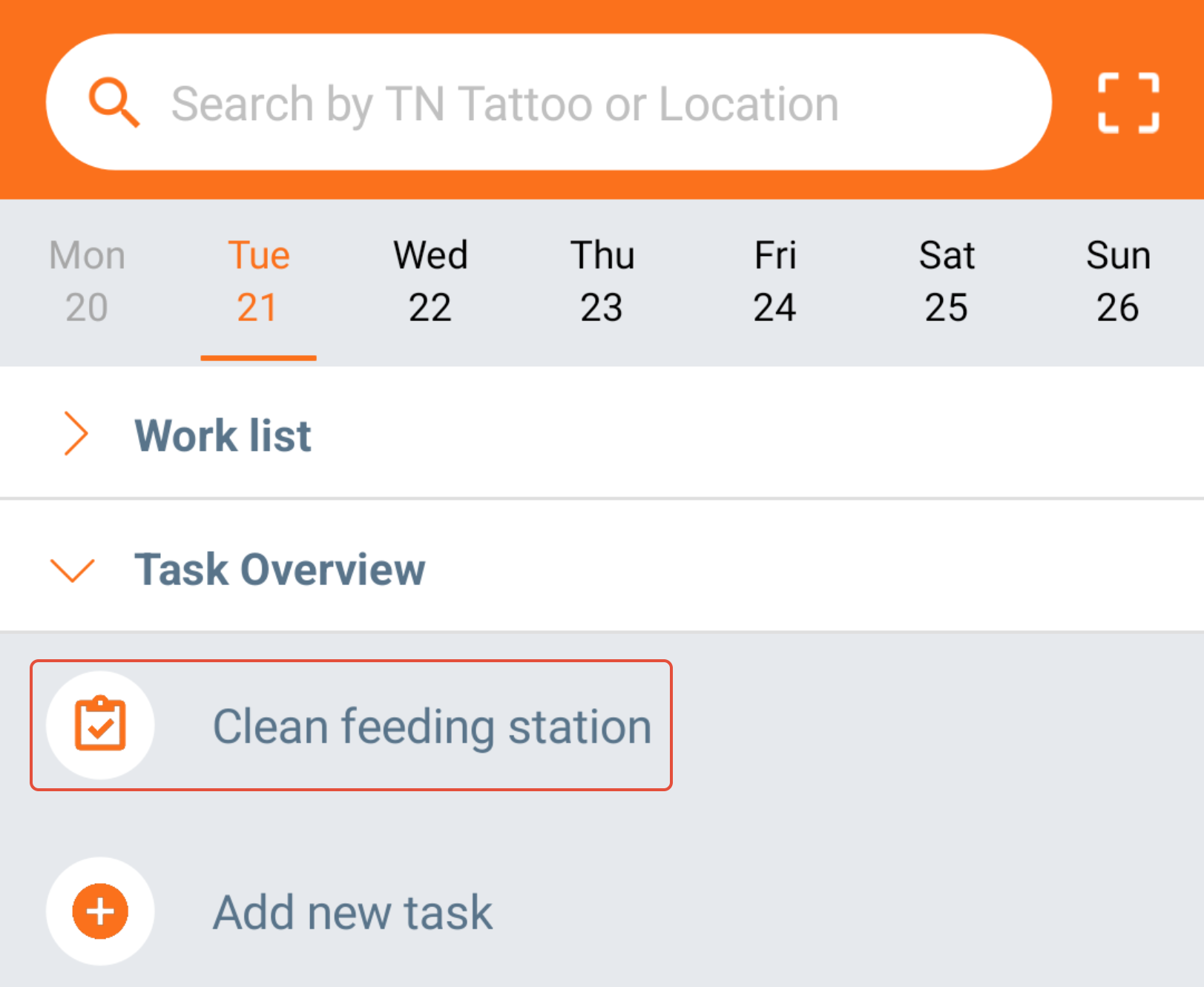
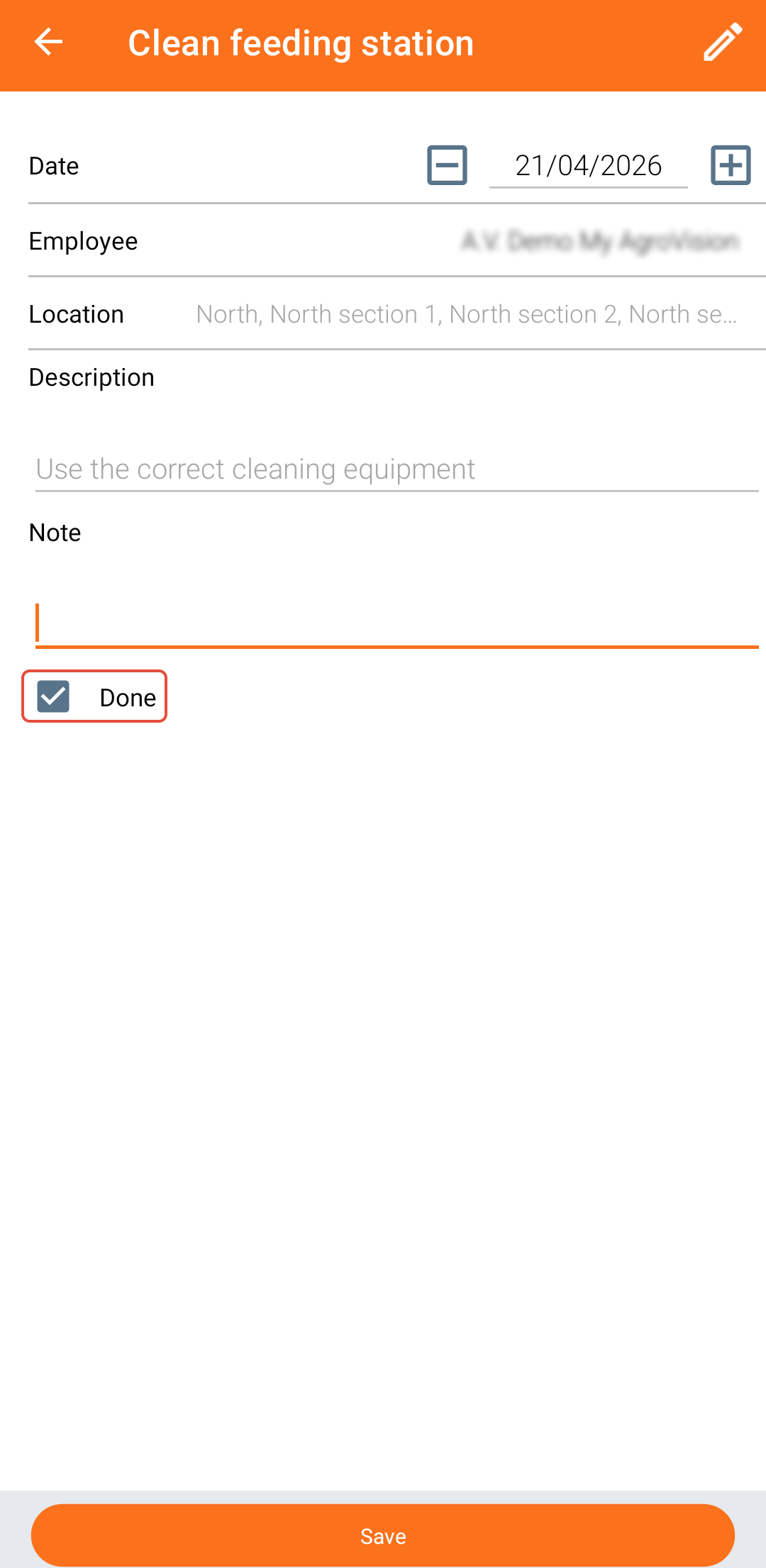
You can select today's or any future date to view tasks scheduled for that day. To perform a task, tap on it to see its description. For example, the task may specify which locations must be cleaned and provide instructions on how to clean them. Once the task is completed, you can add a note (optional) and check “Done.” Press “Save,” and the task will disappear from the "Task Overview" on the home screen.
If you add a note to a task, it will appear in the web app when viewing that task.
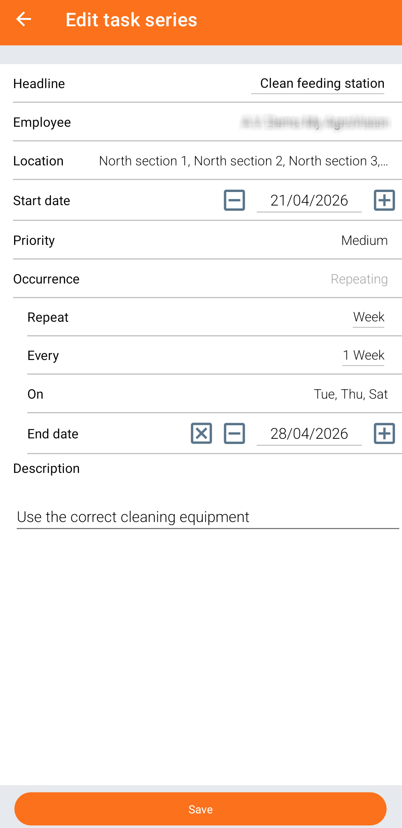
Editing task
You can edit a task by clicking the "pencil" icon in the top right corner.

Select the field you want to change, enter new information (e.g. a new location), and click "Save". After synchronizing, the task will be updated in the web app as well.
Create new task
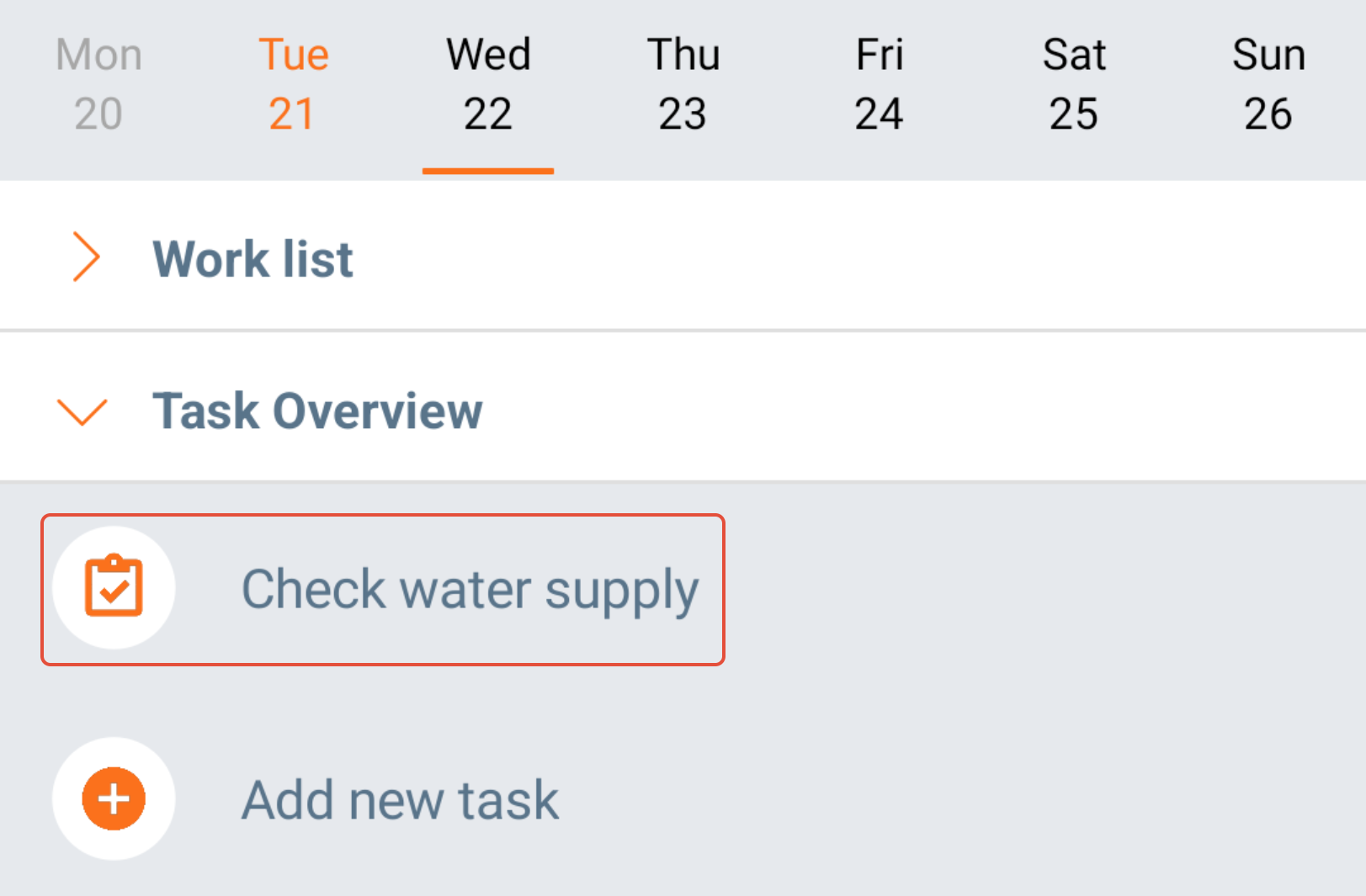
You can also create a new task directly in the mobile app by clicking "Add new task" on the home screen under "Task Overview".
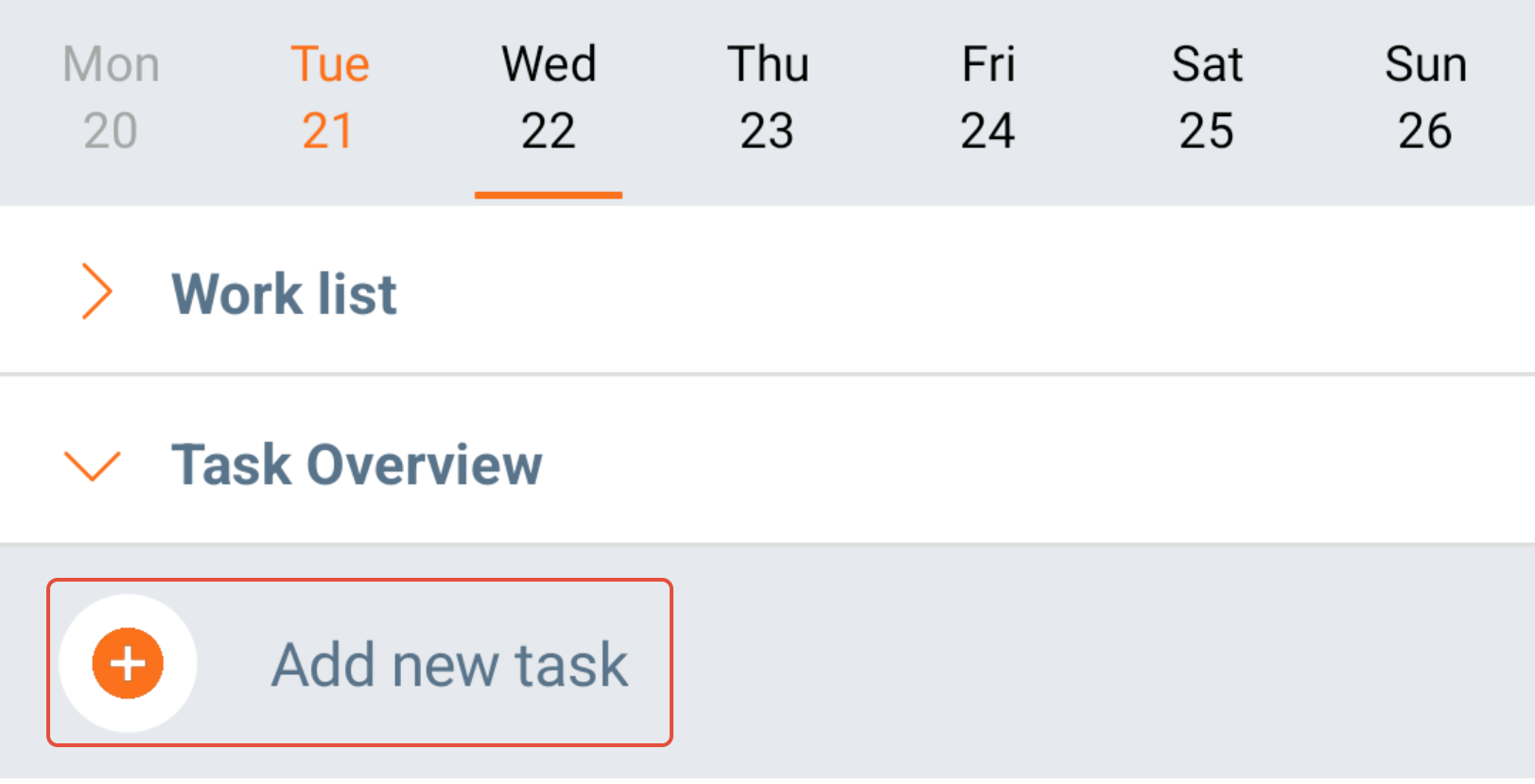
Enter the task details and click "Save". By default, the date will match the one selected in the calendar on the home screen, but you can change it if needed.
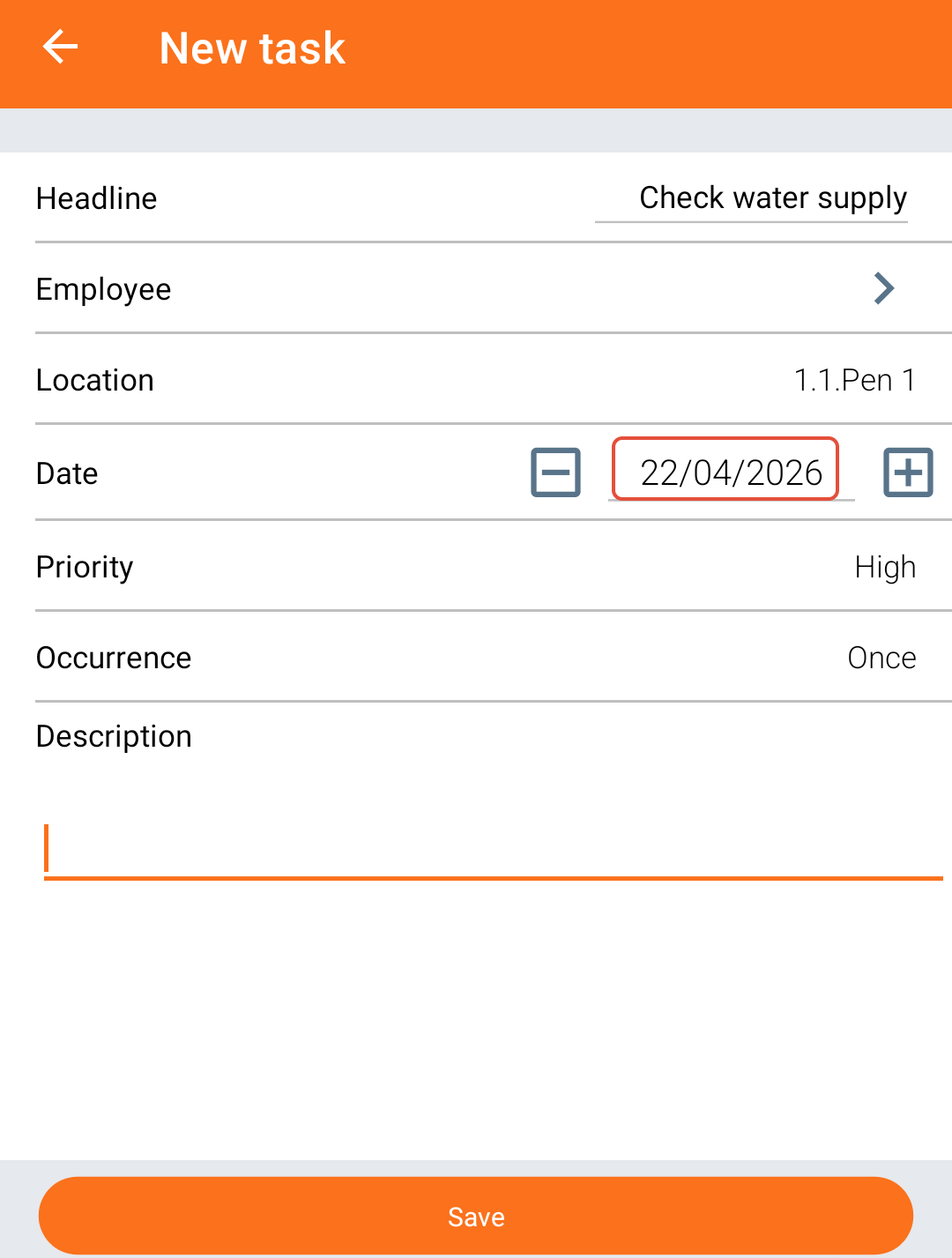
The task will then appear on the home screen on the date it is scheduled to be performed.
Was this article helpful?
That’s Great!
Thank you for your feedback
Sorry! We couldn't be helpful
Thank you for your feedback
Feedback sent
We appreciate your effort and will try to fix the article