To print any screen, tap on the printer icon you will see located in the top right corner.

Once you click, a new window will pop up. Out of the 3 options available choose "Open pdf" and the orientation.
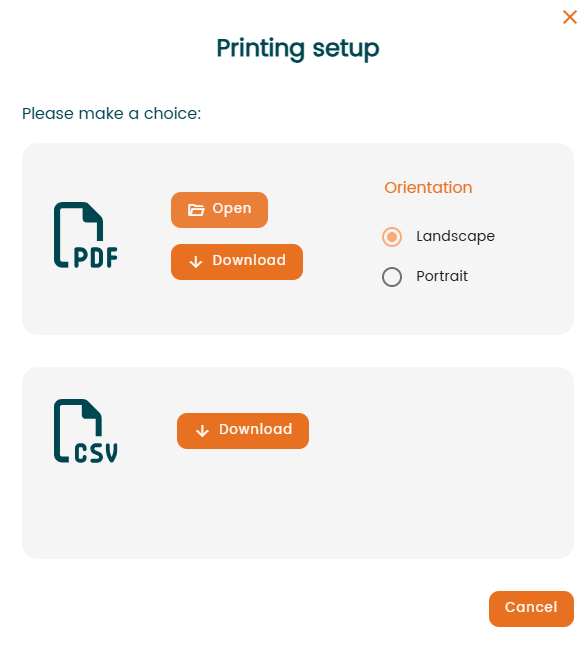
- PDF
- "Open" – Generates and opens the PDF report directly.
- "Download" – Downloads the PDF report to your device.
- "Orientation" – Select either "Landscape" or "Portrait" layout before generating the PDF.
- CSV
- "Download" – Downloads the report data as a CSV file for use in spreadsheet applications such as Excel.
- Cancel
- Closes the "Printing Setup" window without generating or downloading a file.
- Closes the "Printing Setup" window without generating or downloading a file.
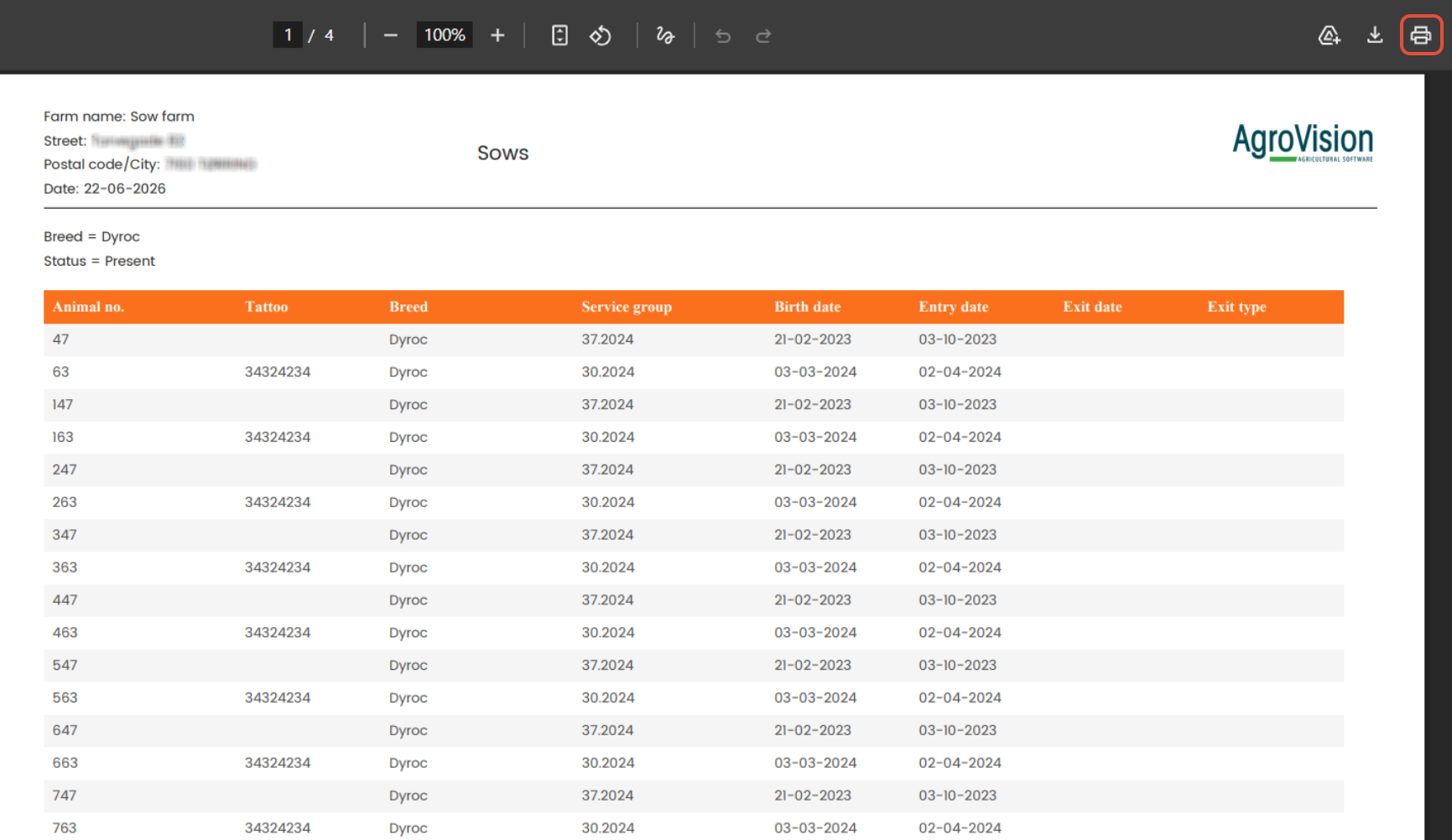
When you select it a new tab will be automatically opened in your browser. There you will see the PDF ready to print selecting "Print" (printer icon in the top right corner).
Was this article helpful?
That’s Great!
Thank you for your feedback
Sorry! We couldn't be helpful
Thank you for your feedback
Feedback sent
We appreciate your effort and will try to fix the article