Before you start using locations in the program, you have to set them up first. This must be done in the webapp, under "Setings" - "Site information" - Location". Read more.
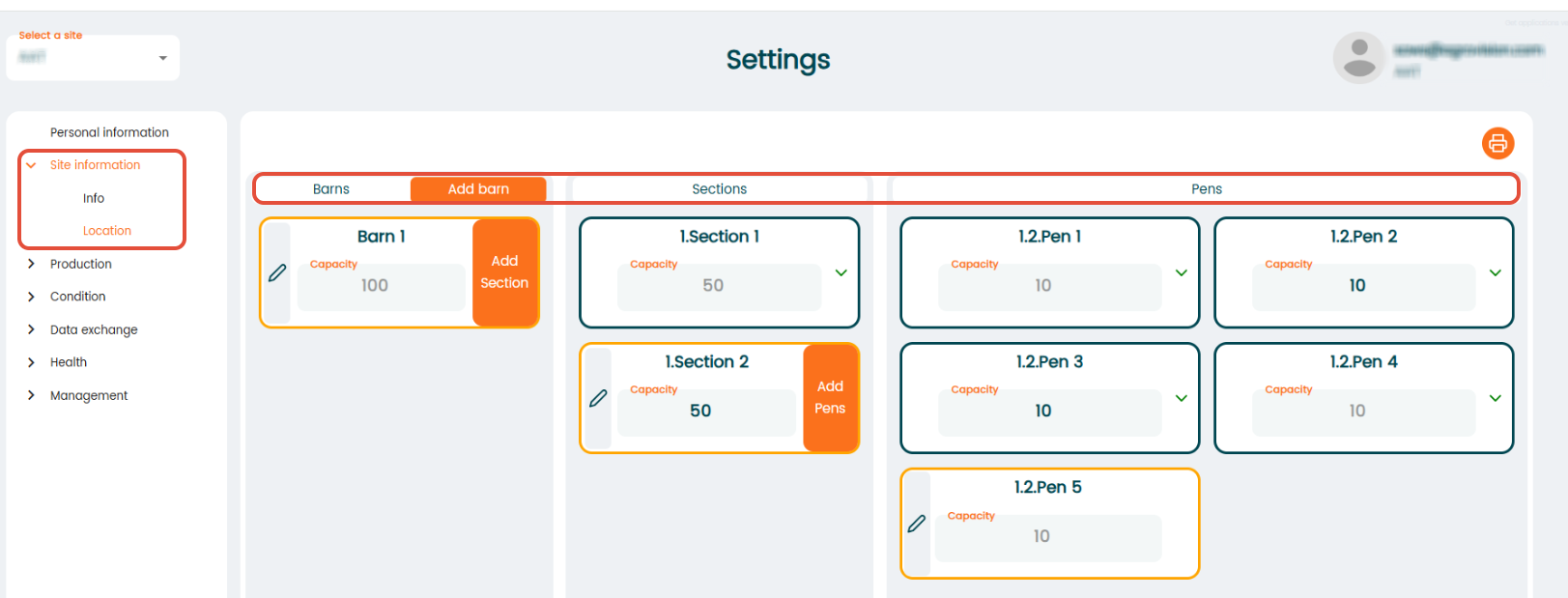
In the settings you define the hierarchy of the locations. The example above shows this.
- "Barn"
This is the top-level location. In this example, "Barn 1" is the main location. - "Sections"
"Sections" exist within a barn.
"Section 1" and "Section 2" both belong to "Barn 1". - "Pens"
"Pens" are the lowest level and exist within sections.- "Section 1" contains: "Pen 1", "Pen 2"
- "Section 2" contains: 'Pen 3", "Pen 4", "Pen 5".
Add animals to location
To add animals to location, go to "Animal events" - "Relocation". Click "+Add new row" and type in animal number, date and select a location.
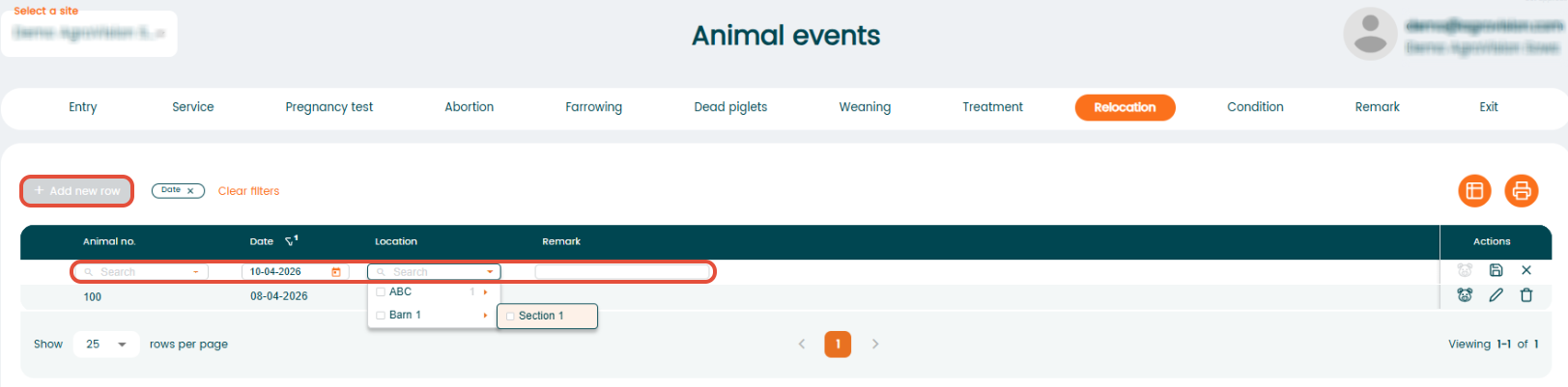
Once animals are assigned to locations, these locations can be used in event registrations, such as treatments.
Register Events for a Group of Animals
To enter an event on a group of animals in a location, go to "Animal events". Select an event on the top, and click on the "Group registration" icon.

When you select "Group registration" the first column will change to “Location”. Click “+ Add new row” and select a location. The program will display all animals in that location, and you can uncheck any animals that do not need the event (e.g., treatment). Then enter the relevant information.
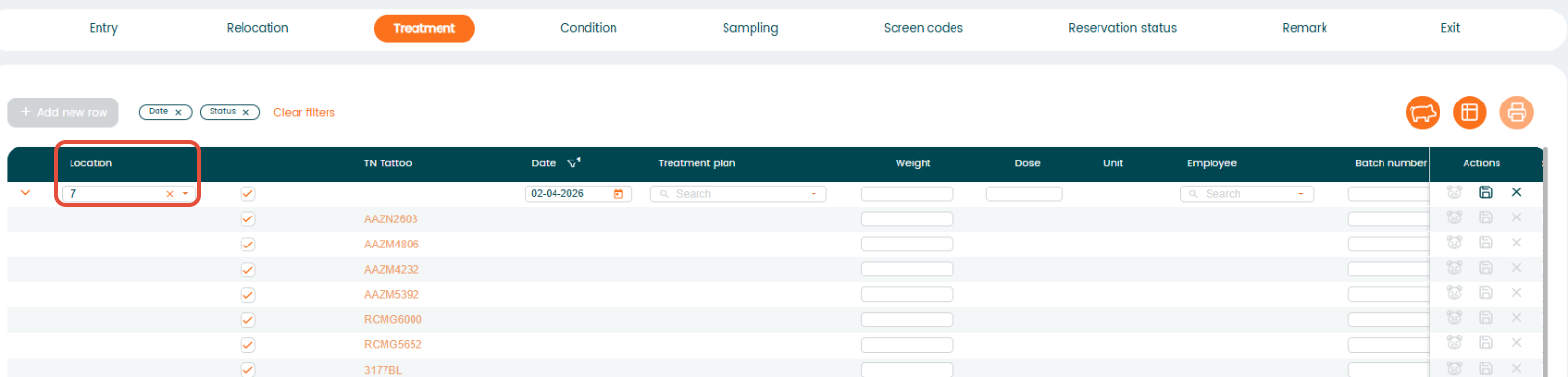
This method can be used for all events that support group registration.
Mobile app
In the mobile app, start typing a location in the search field at the top of the home screen. Select the "Locations" tab to see matching results.
You will see:
- Number of animals in the location
- Capacity of the location (e.g., 10 animals out of 150 capacity)
Capacity can be setup under "Settings" - "Site information" - "Locations".
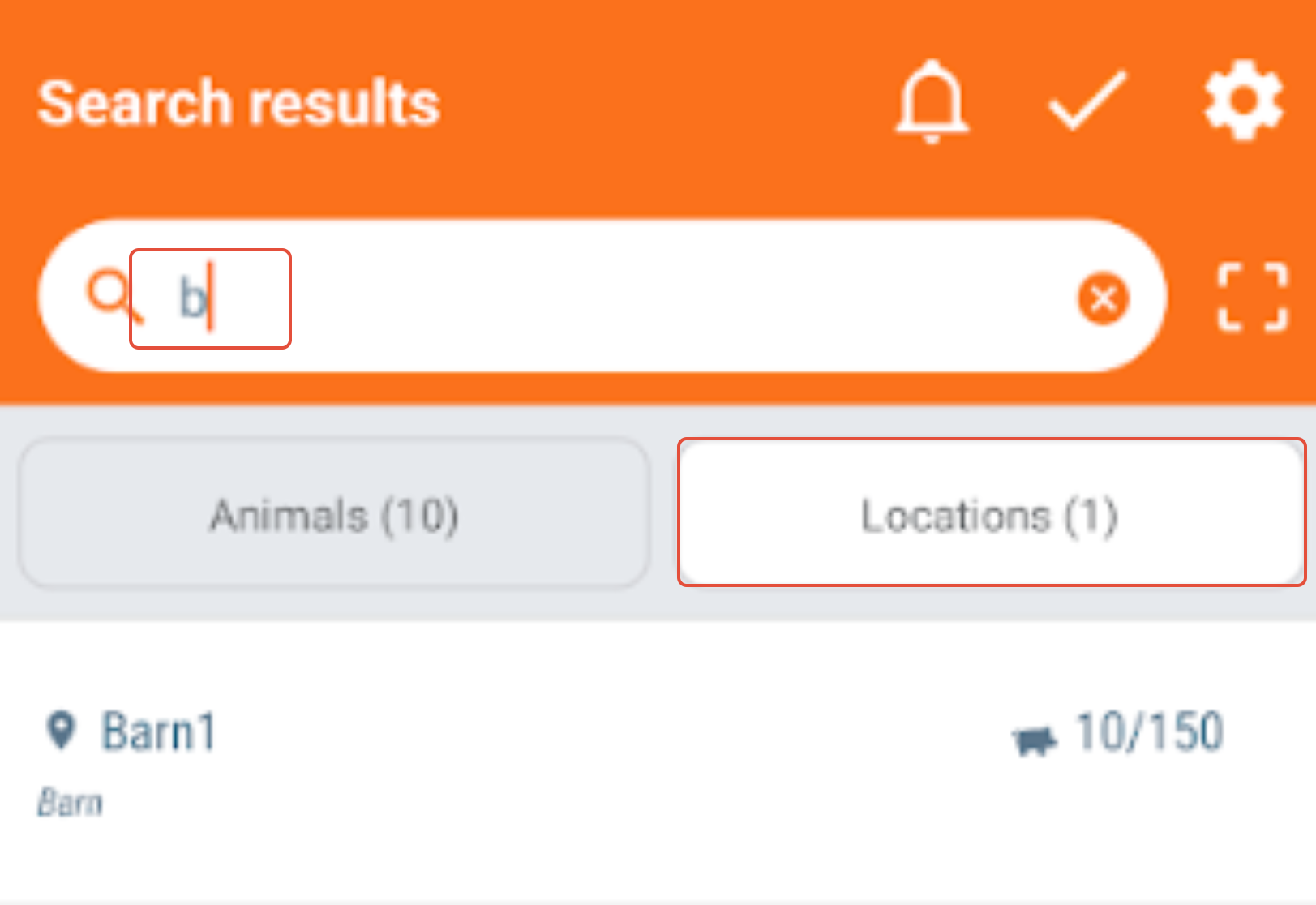
Tap on a location to choose an action to register. The app will display all possible events for that location.
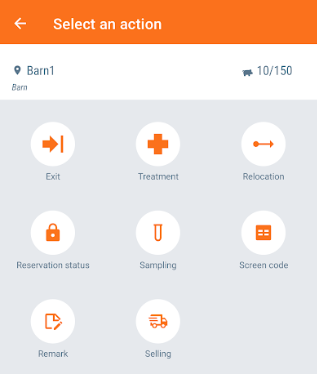
Select an action, for example "Relocation". The app will show available locations and sites.
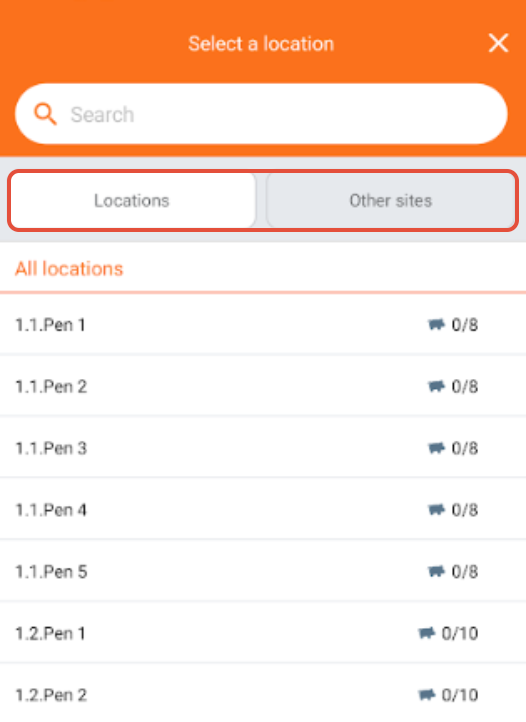
Select the destination location and enter relevant information.
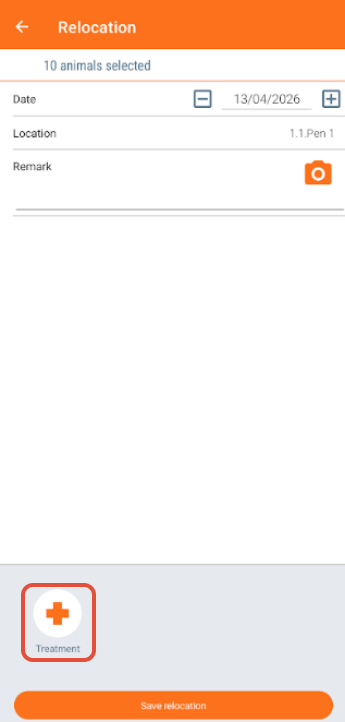
Additional actions (e.g., treatment) may be available at the bottom of the screen.
- If no treatment is needed, click "Save relocation".
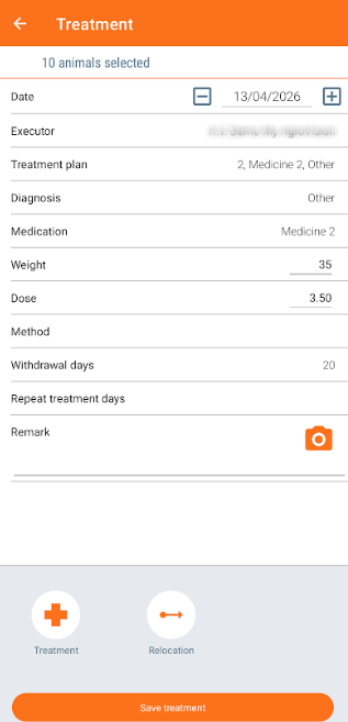
- If treatment is required, click the "Treatment "icon.
Treatment plans can be setup in "Settings" - "Health" - "Treatment plans". Read more.
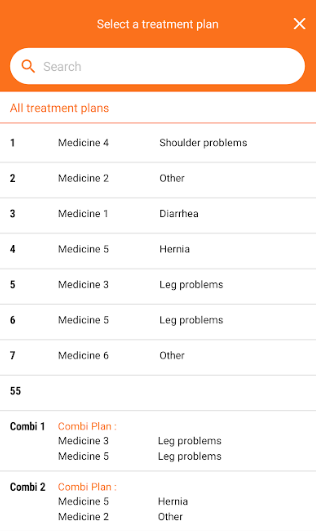
Select a treatment plan, enter the required information, and click "Save treatment". Both the treatment and relocation will be saved.
Was this article helpful?
That’s Great!
Thank you for your feedback
Sorry! We couldn't be helpful
Thank you for your feedback
Feedback sent
We appreciate your effort and will try to fix the article