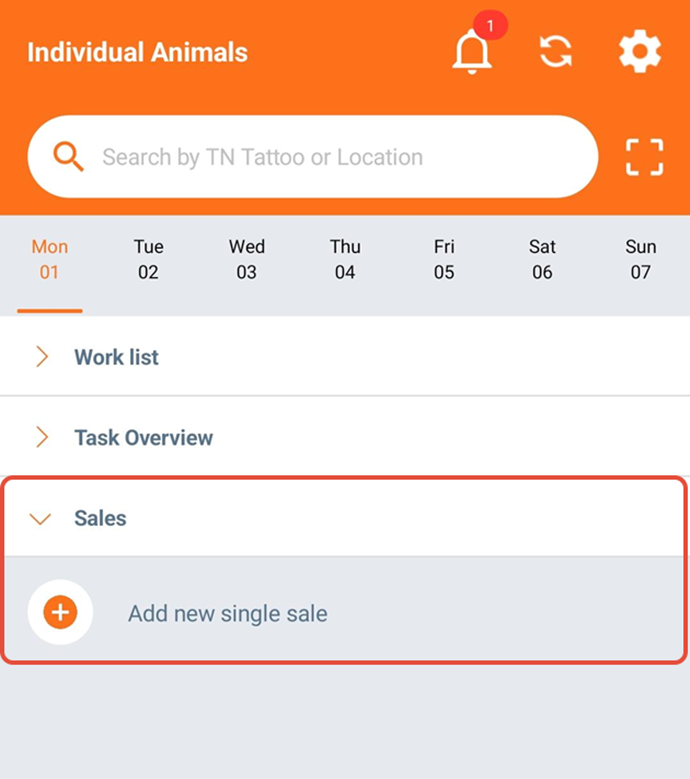
To create a new sale in the AgroVision Sows mobile app go to "Sales" on the home screen and click "Add new single sale".
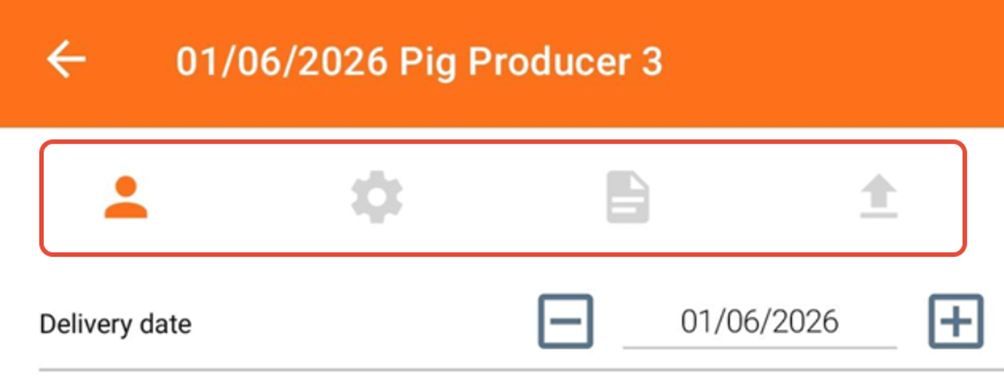
The sale consists of four tabs along the top, which need to be filled before you can upload the sale. You can move between the tabs by clicking on the icons.
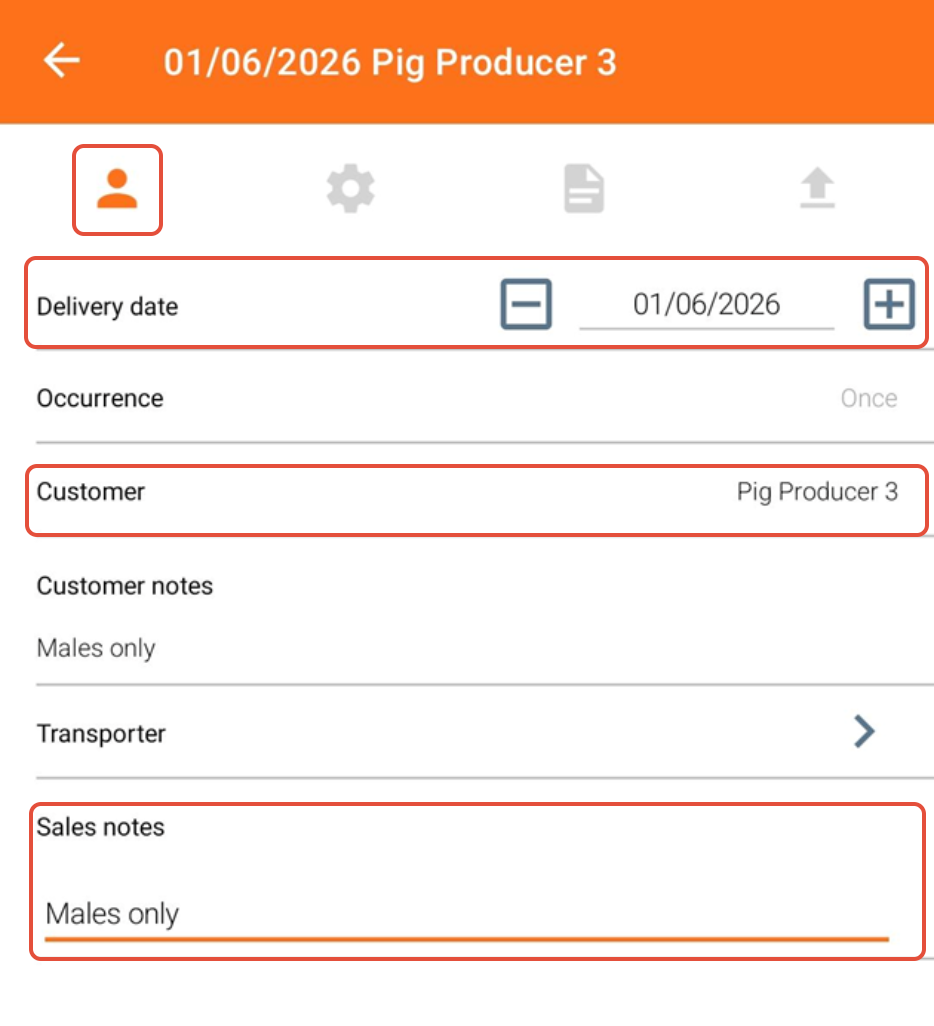
In the first tab, start by entering a delivery date. This is mandatory but editable. Choose the customer and write any sale notes if needed. You can proceed regardless if you choose a customer now or later, however eventually you must choose a customer to approve the sale.
In the next step, you set the "Order criteria". Here, you set the criteria for age, breed, index and sex of the animals. Press "+" to add the criteria.
You can add up to 5 additional sections with order criteria can be added, by clicking "+ Add extra criteria".
You can only select one breed and one sex per order criteria, so if you need to add different breeds or sex you must add a new section of order criteria.
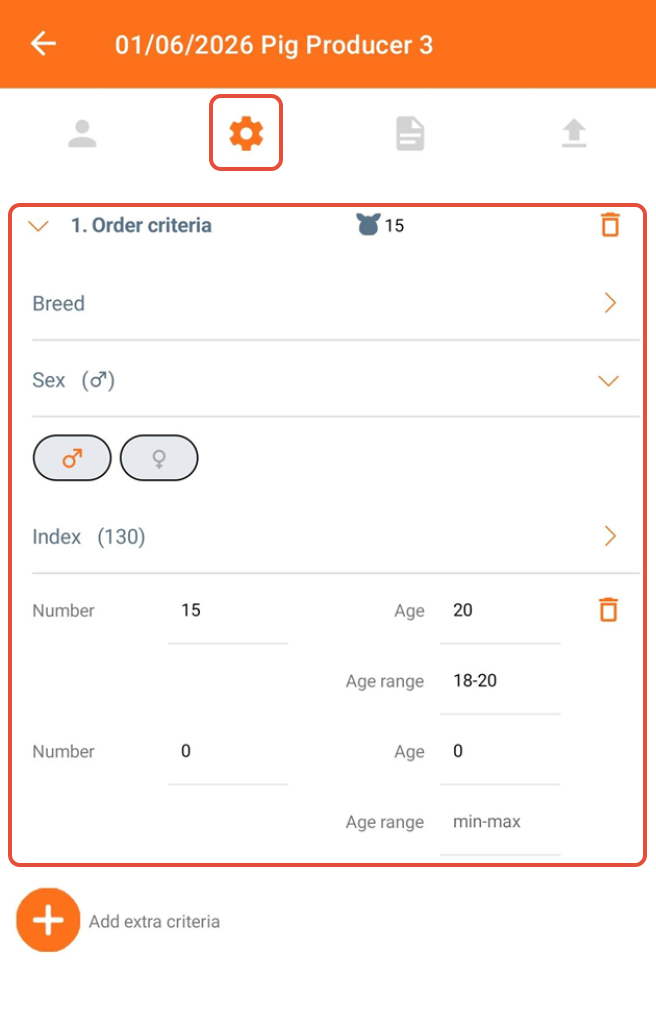
Fill in the information:
Breed
- The breeds can be set up in the AgroVision Sows web application.
- Once the animal is selected it is not possible to delete a breed, but only change it.
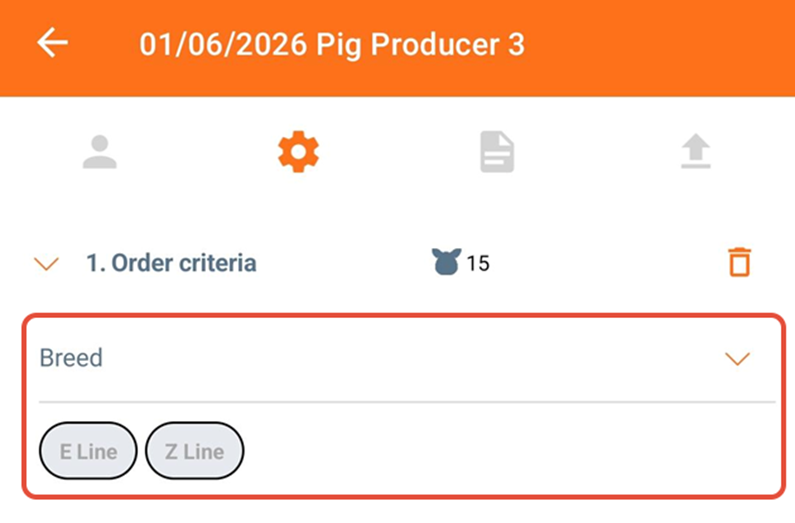
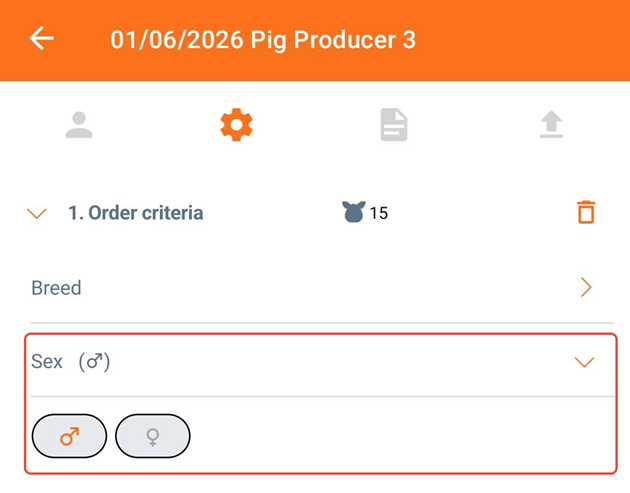
Sex
- Choose male (left) or female (right).
- Once the animal is selected it is not possible to delete the sex, only change it.
Index
- You can enter an index interval with a minimum and a maximum value
- The number of animals can range from 0 to 999.
- Enter the age of the animals in weeks.
- If you want more animals with different ages, you can enter this in the next row called "Number".
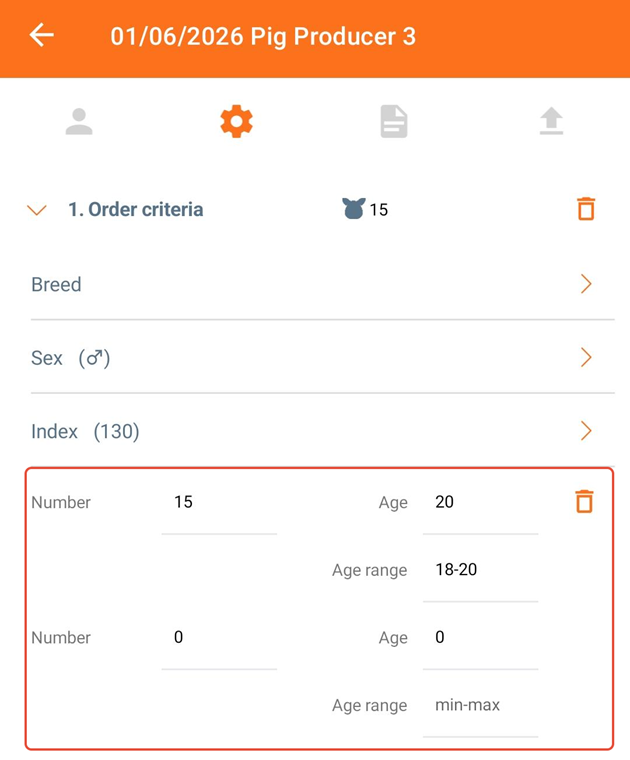 It is possible for you to delete the line by clicking on the trashcan icon. A minimum of one order criteria is required to create a sale.
In the next tab, it is possible for you to search or scan animals into the list by using a tag reader. Simply type in the number or scan your animal, and the app will let you know, if the animal is added to the order.
The list will remain empty until you search/scan and add animals to the list.
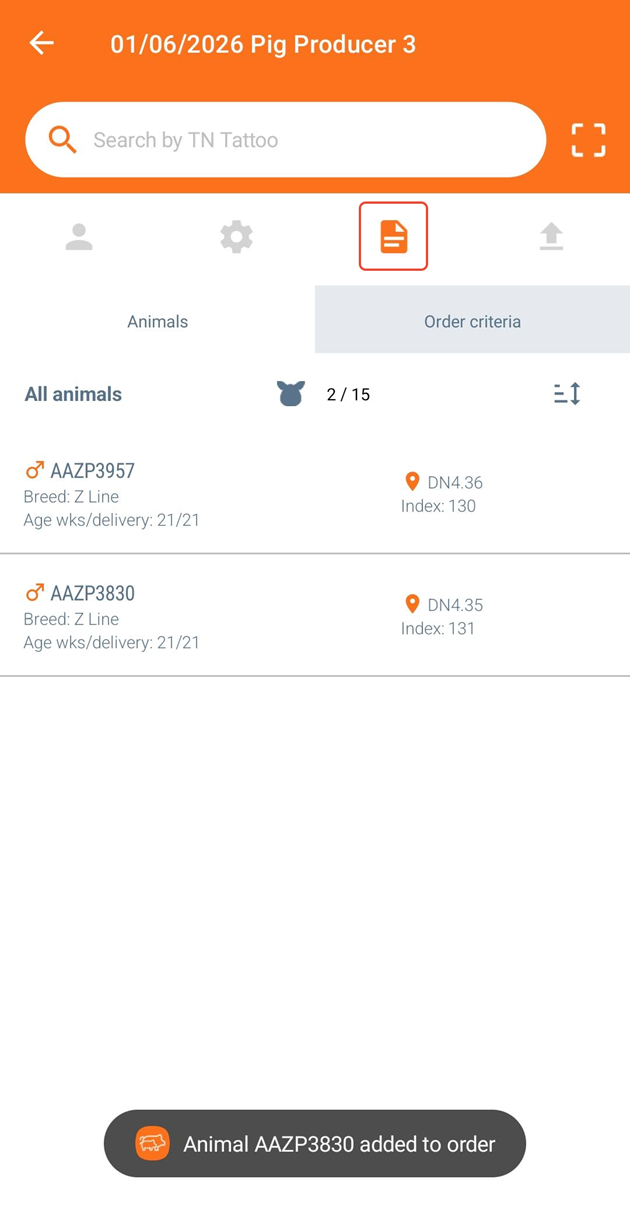
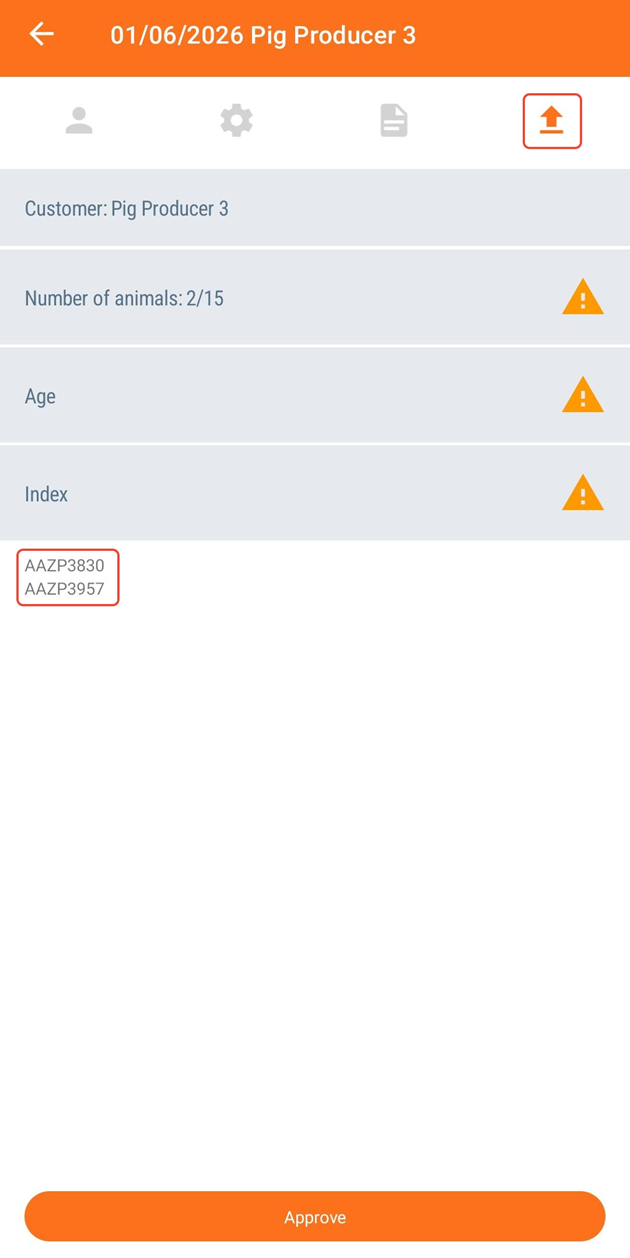
After your animals are added, go to the last tab to open the sales order summary. This will display any issues related to the order with a warning icon.
It is possible to add animals to the order that do not meet the selection criteria. Therefore, you will be notified by a warning icon, if you have too little/many animals on the order or if any issues are related to age or index.
You can see which animals are added to the order under the "Index" section.
Was this article helpful?
That’s Great!
Thank you for your feedback
Sorry! We couldn't be helpful
Thank you for your feedback
Feedback sent
We appreciate your effort and will try to fix the article