Login to My.AgroVision
Go to my.agrovision.com and log in with your credentials if you already have a my.agrovision account.
If not, please create a my.agrovision account by following this guide: How to create a MyAgroVision account
After MyAgrovision account will be created, AgroVision Sows will appear on the main page.

Open AgroVision Sows web application
On "my.agrovision.com" you will see, which applications you have access to. Find AgroVision Sows and press "Open".

One of the first steps when you start using AgroVision Sows is the set-up of the program. You will see a welcome screen in which you fill the required information.
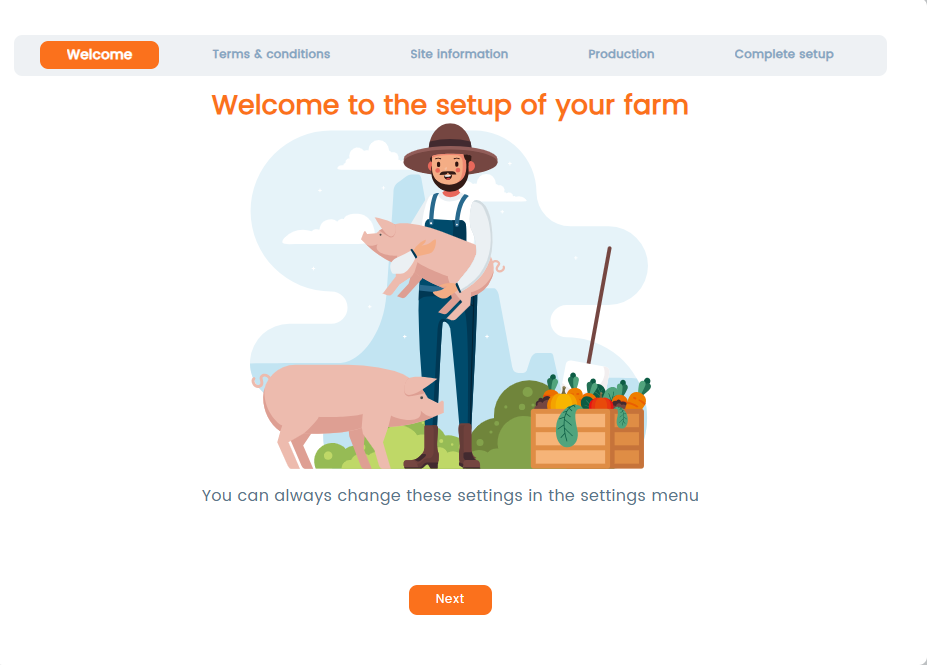
Click Next to proceed to the next screen to complete the required information. You can always return to Settings later to continue setting up your farm.
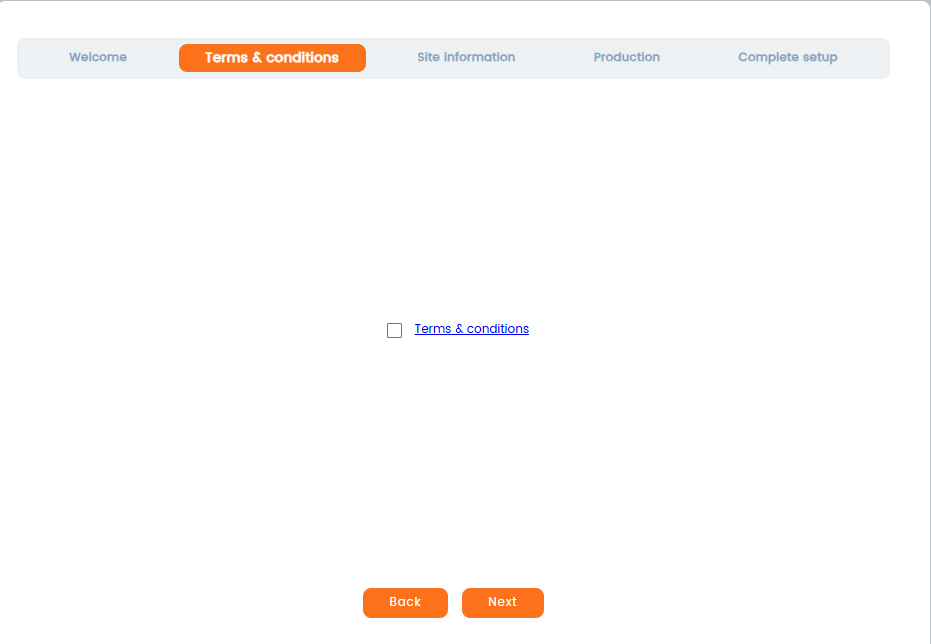
Before continuing with the setup, you must read and accept the Terms & Conditions. Carefully read the Terms & Conditions. After reviewing the document, select the checkbox next to “Terms & conditions” to confirm your agreement. lick Next to continue to the following step.
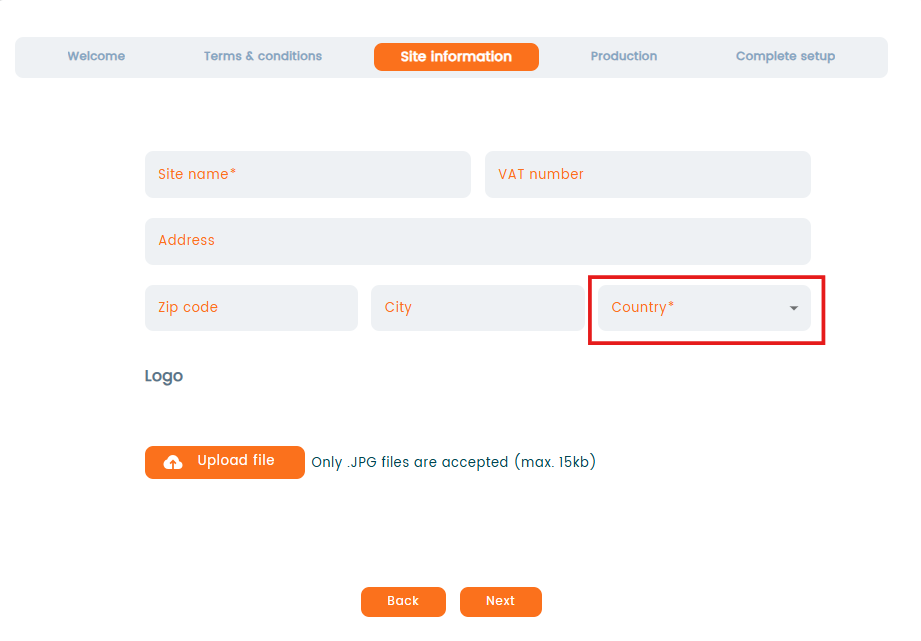
Next move to the "Site information". In this section you will have to fill your site information, like name, VAT number, address and choose the country. It is essential to correctly choose your country from the "Country" dropdown, as certain features in the app will depend on this selection.
You can additionally upload your company's logo in the "Upload file." Click "Next".
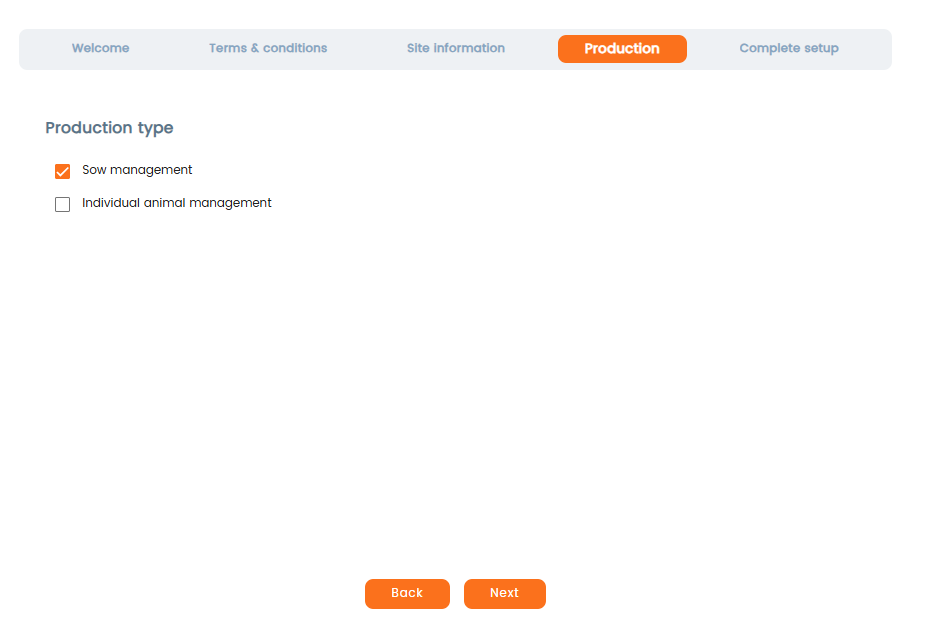
In the next step you will have to chose your production type. It is possible to choose between two production types in AgroVision Sows: "Sow management" and "Individual animal management".
- "Sow management" system is for managing whole herd: farrow-to-finnish.
- "Individual animal management" system is for boar farm only. If you choose Individual animals management, all sow related events are filtered away.
Once the setup is completed, the production type cannot be changed.
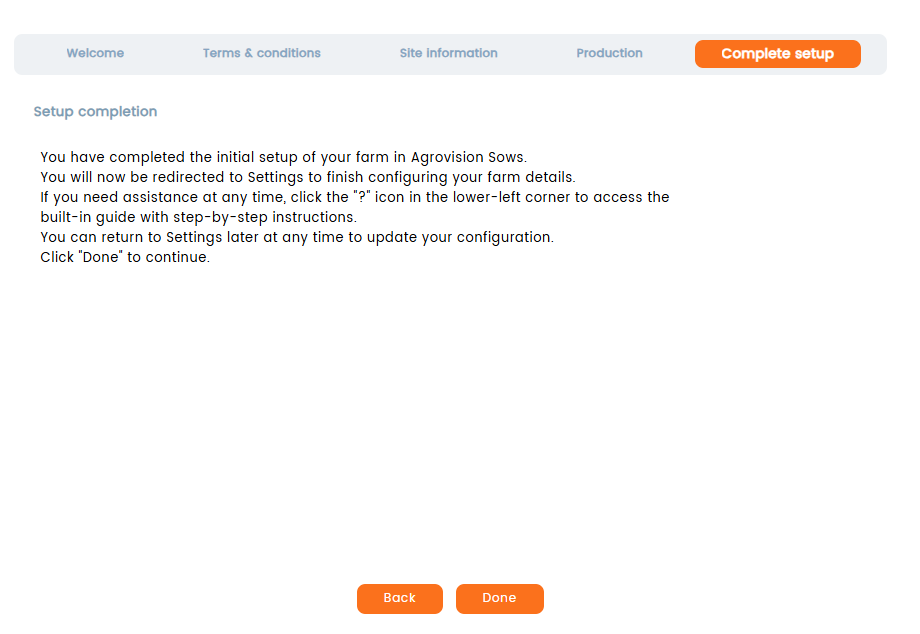
The last step of the setup will inform you to continue setting up your farm in the "Settings" menu and refer to a "?" for accesing built-in-guide at any time. Click "Done"
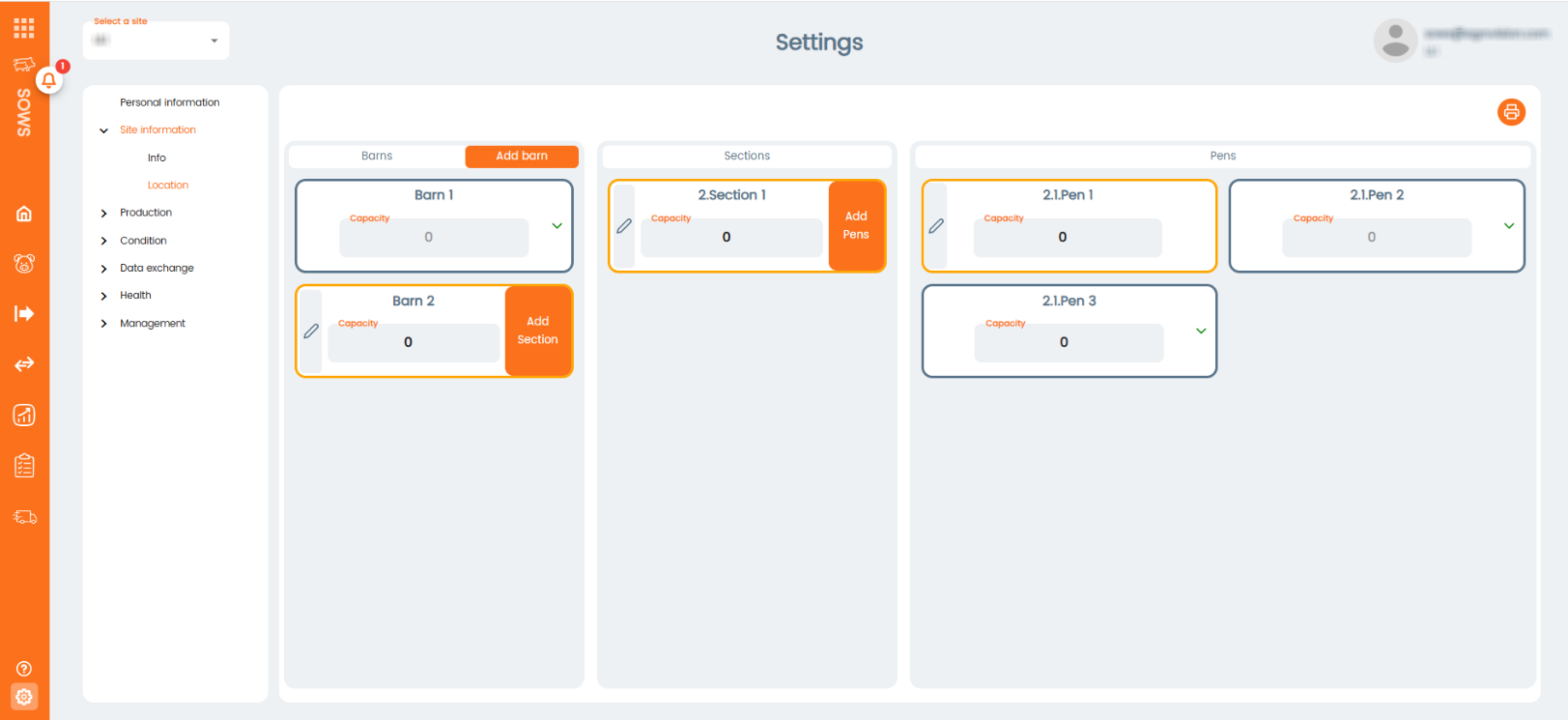
Once you have closed the initial setup page, you will be redirected to location setup. It can also be found in "Site information" - "Locations".
Here you are can create different locations inside your site. There are 3 levels of hierarchy. First one is the "Barn", you can create as many barns as you want clicking in the "Add barn". Inside each barn you can create "Sections", clicking in the "Add section" button you can add new ones. Finally, inside each section you can create "Pens" with the "Add pen" button.
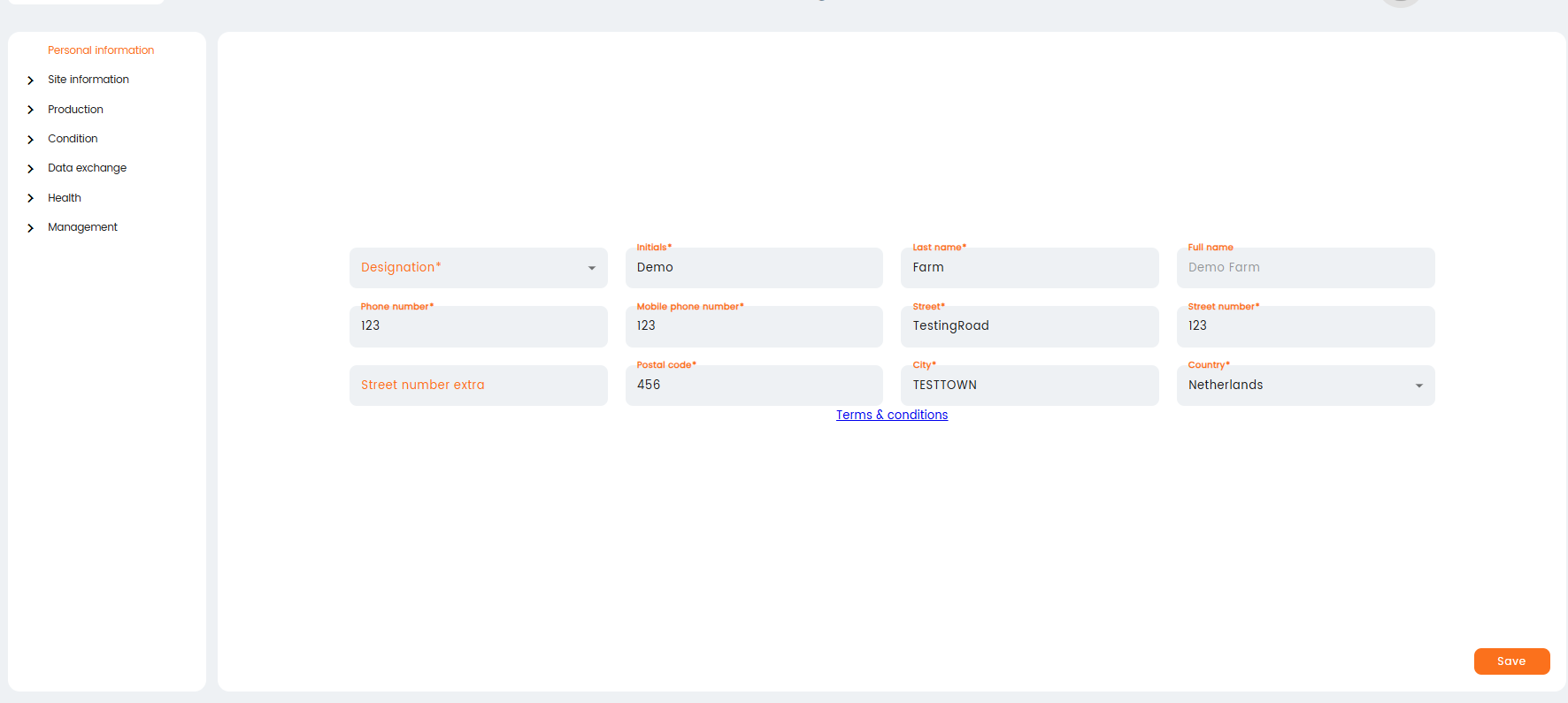
Next proceed to "Personal information." In this section, you should provide details like your name, phone number, and so on. It is essential to correctly choose your country from the "Country" dropdown, as certain features in the app will depend on this selection. Once you have completed your information, press "Save."
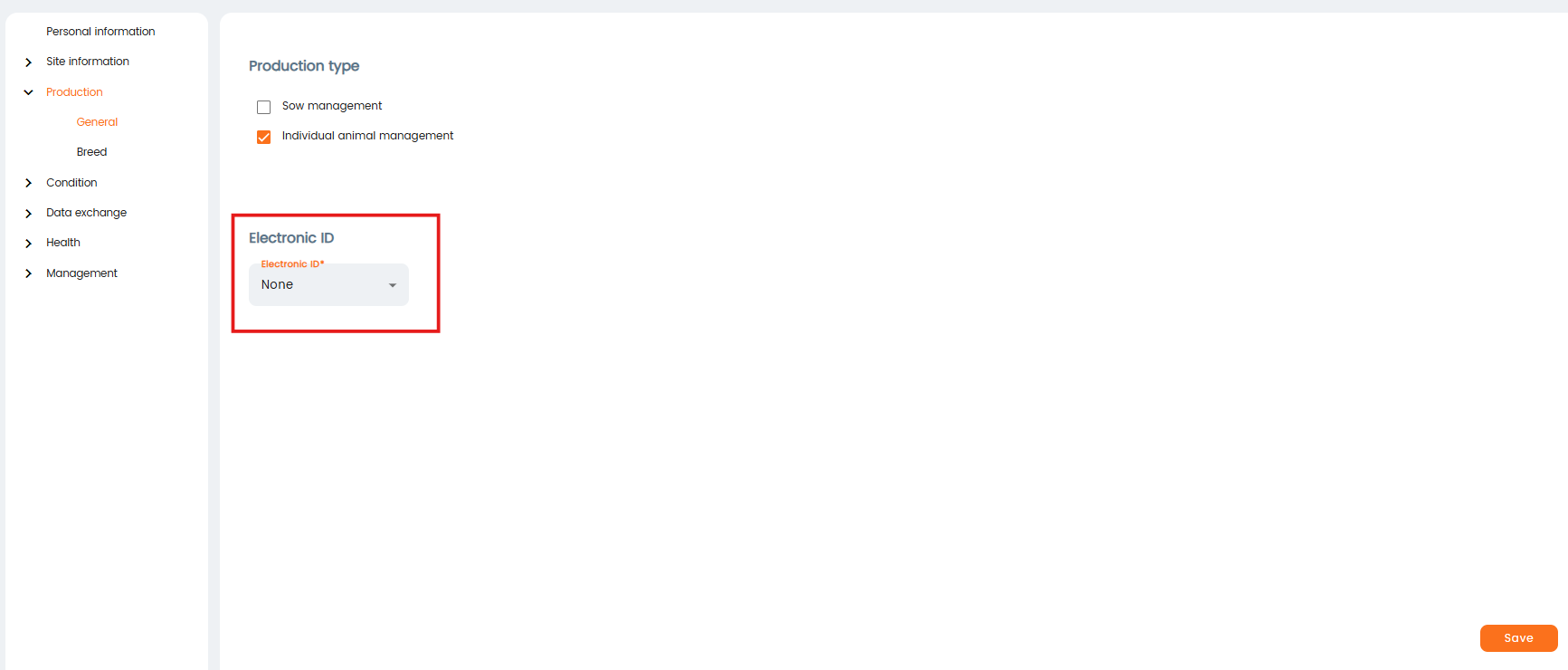
The next step is "Production." Here, you will go through three screens. You need to set up your production type. If you already did this when you first set up your farm, you can skip this part. Choose Electronic ID if you have one.
Navigate to "Breed" to ccreate the breeds present on your farm. This will enable you to assign a breed to an animal in the event registrations. For purebreds, tick the Purebred column. Only the breeds created here can be chosen for animals within the program. Click the Save icon when you are finished.

"Conditions": in this section you will go through 3 screens to set up your screen codes. First step is to setup "Traits". Click "+Add new row" to start entering a new trait. Assign the trait an ID, enter a name, and select a trait type from the dropdown menu. Choose the appropriate unit for the trait (only applies to the Trait type "measurement") . Format is a column to tell the system how to display or validate numbers.
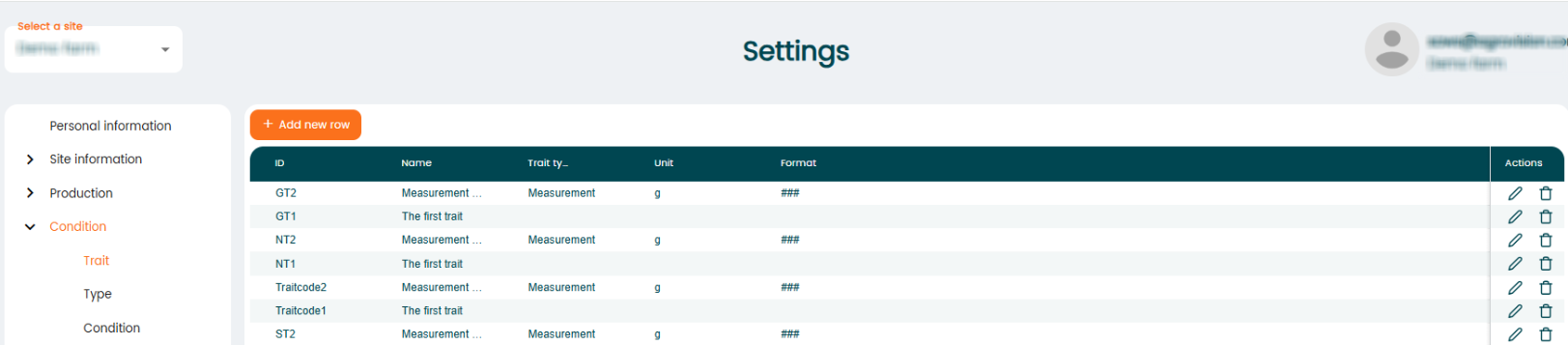
Next section is "Type", you create traits that need specifically to be sent to breeding companies or that will help you to analyze or filter on a specific trait. General Condition types that are used across the entire customer base as well as general condition types for breeding organizations will be available right away (e.g. weight or backfat and TN End for Topigs breeders).

"Condition" sections combines "Trait' and "Type" sections. Here you create actual events that will appear in the application. To create Condition, press "+Add new row". Give the Condition an ID and a Name.

"Data exchange". In this section you set up breeding data exchange with third parties. Choose breeding company from the list and enter your customer number. Select company type and press Save.

"Health": first section of the health menu is "Cause". Here you will register all the diseases you want to enter in the app. To register a new cause click on the "+Add new row" icon and fill in the information of the cause, then click on the save icon. You can decide if the cause you are registering is a cause or an exit.
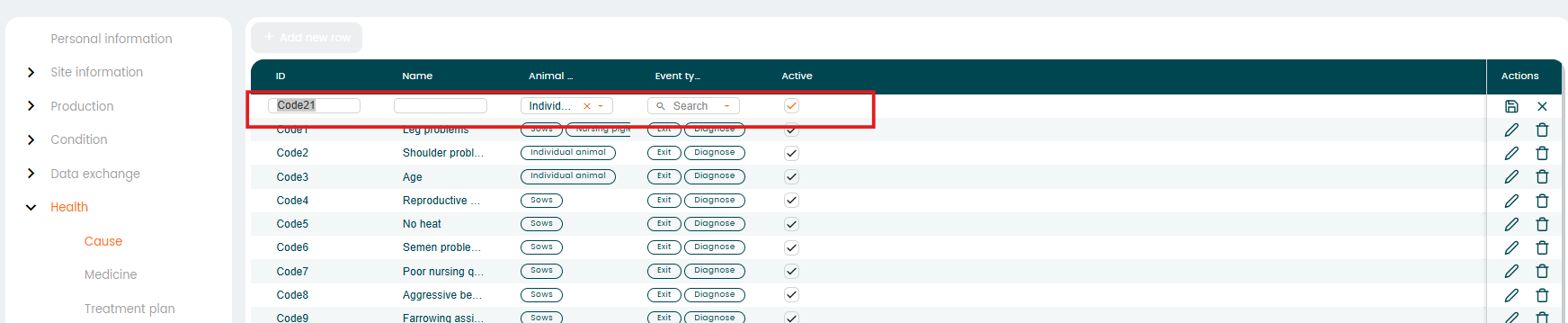
In the second section "Medicine", enter all your medications

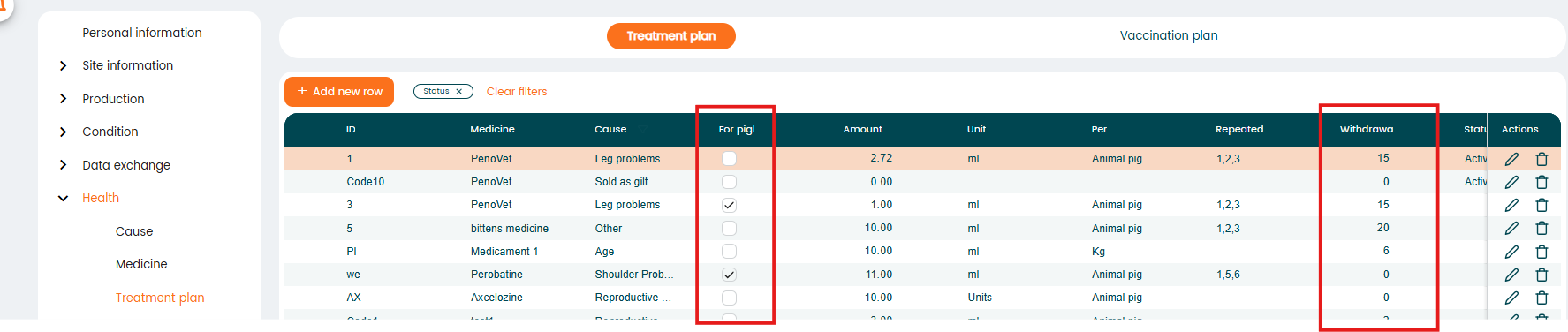
The following section is "Treatment plan". In this window, you can specify your Treatment plans and/or your vaccination plans. Specify which causes are present, which medication should be used for these causes, how much medication should be used, how many days the treatment will last, and how many days the withdrawal period should be for this specific plan. To register a new plan click on the "+Add new row" icon and fill in the required information. Checkmark if the treatment is used to treat suckling piglets.
"Management": in this section you will set up your employees, external relations and service groups. The "Employee" section inside this menu is to invite and register new employees and give them rights to use the app. You can create/invite a new employee by clicking on the "Invite employee" button. Once you click there you will fill in his/her email and they will receive a notification in their mail inbox for activating their account. Until they activate their account, the new employee's status will be "Pending". Once they complete the activation their status will be "Active".

Different role types are available to be assigned to the employees:
- Owner: right to create new sites, create new employees, read/edit rights for the whole app
- Admin: same rights as the owner
- Manager: access to all the information (included settings) of the sites he has rights for. Cannot create new sites.
- Employee: just rights to enter/edit/read information of the sites that administrators give rights to. Has no rights for settings.
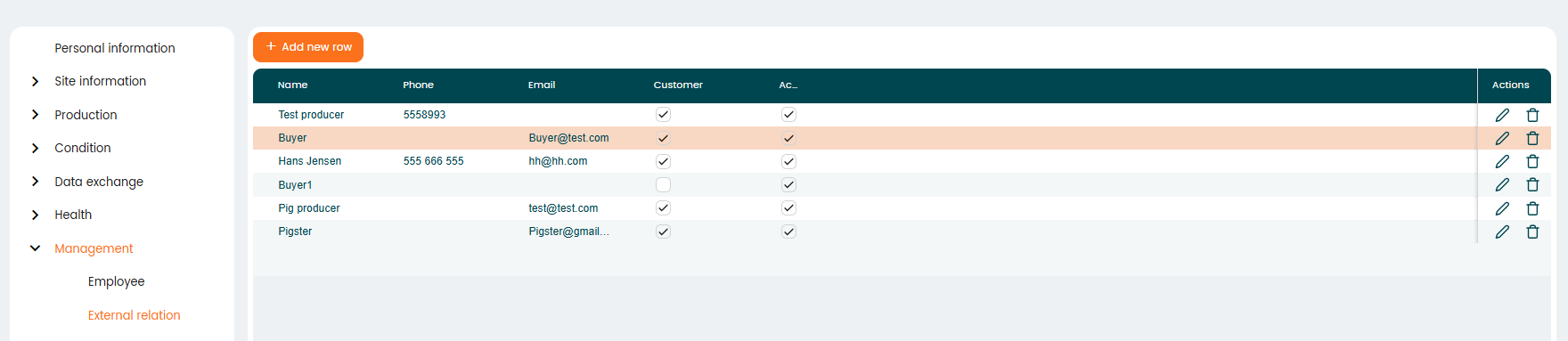
External relations: here you setup all your third parties, such as customers, consultants, etc. For registering a new one click the "+Add new row" icon l and fill in the required information.
"Service group setup": you can setup any type of service group system. This is a one-time setup, but if you change your service group setup, then it is of course also possible to change it here
It is possible to set up your service groups by filling out the information as shown on the picture below.
Press "Save" when done, and you will get an overview of your groups.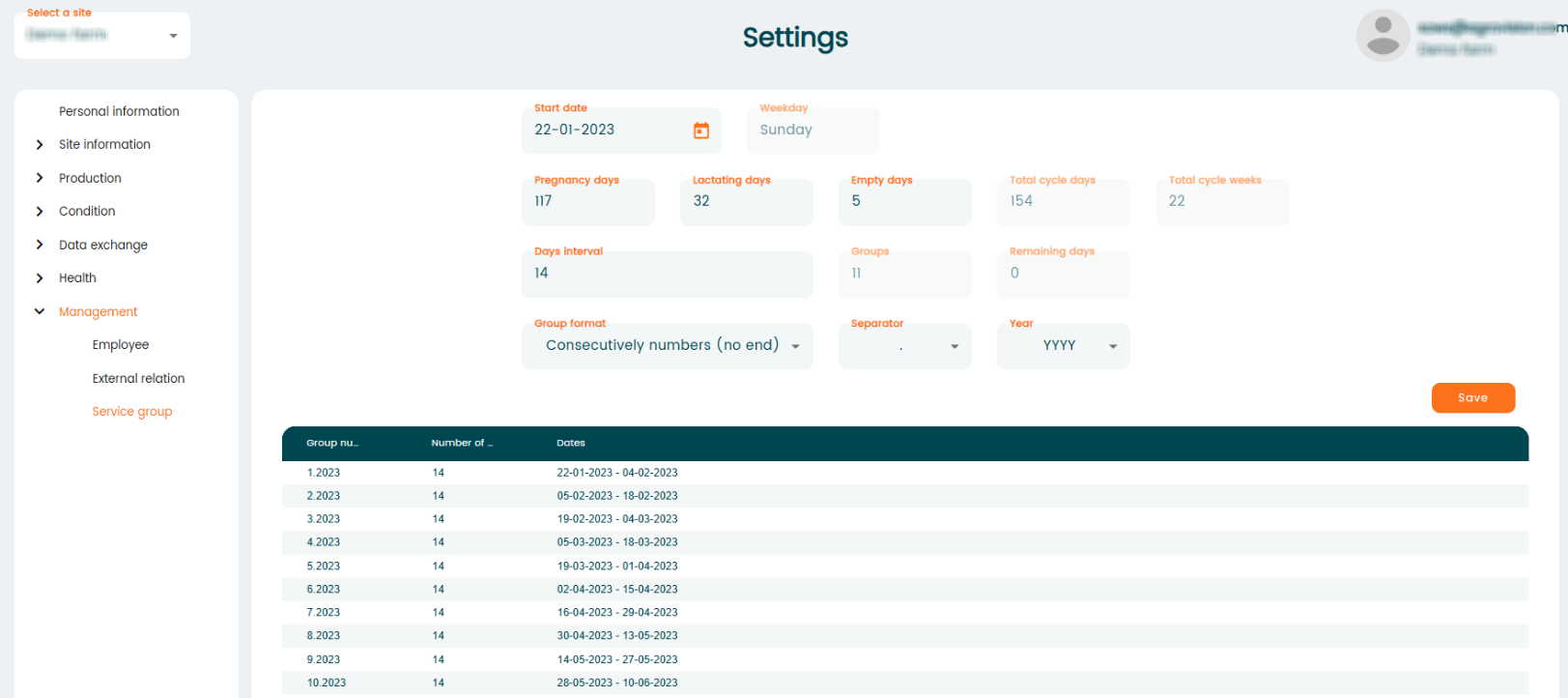
Was this article helpful?
That’s Great!
Thank you for your feedback
Sorry! We couldn't be helpful
Thank you for your feedback
Feedback sent
We appreciate your effort and will try to fix the article