Worklists help you organize and plan tasks which occur either once or in a specific frequency on your farm, by generating lists of animals that require a specific action. By defining selection criteria such as events, animal groups, employees, and schedules, you can ensure that the right tasks are carried out at the right time and in the same way every time.
This article explains how to create, save, and manage worklists in the system.
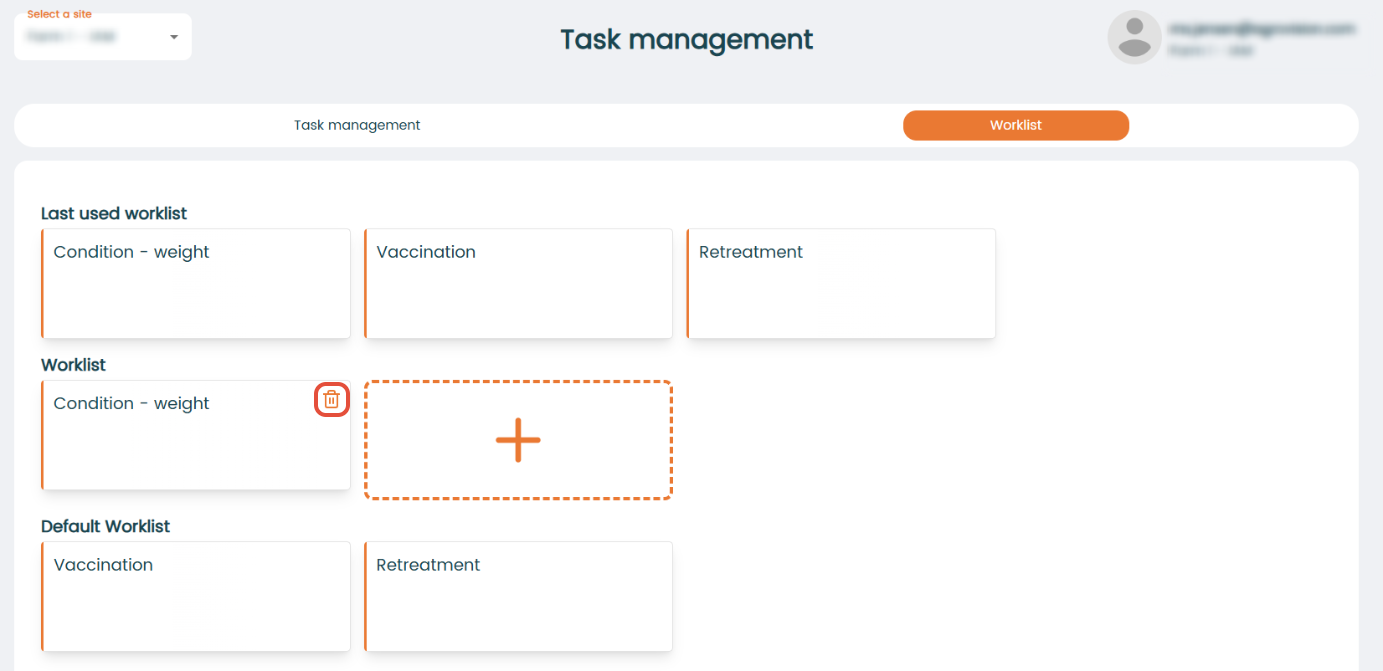
Go to "Task management" - "Worklist" - click on "+".
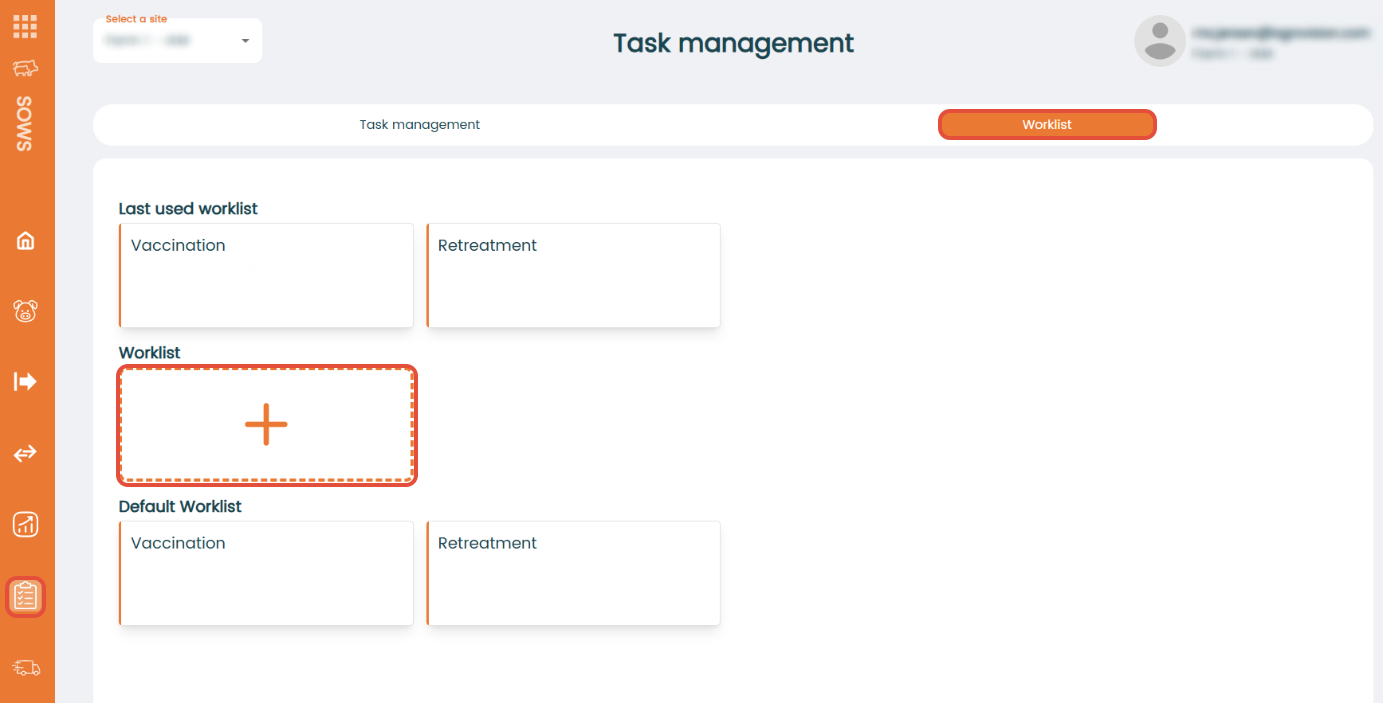
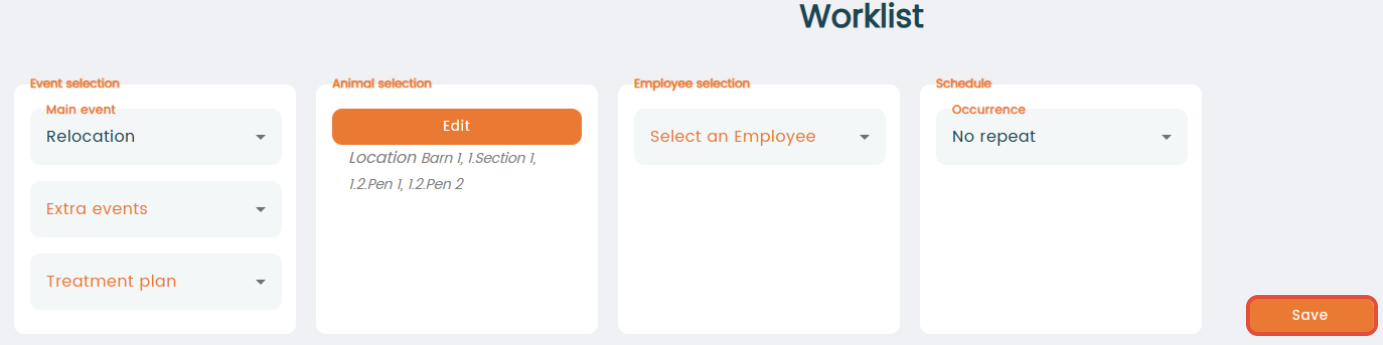
A new tab will open in your browser with your new worklist. Here, you have 4 different selection criteria:
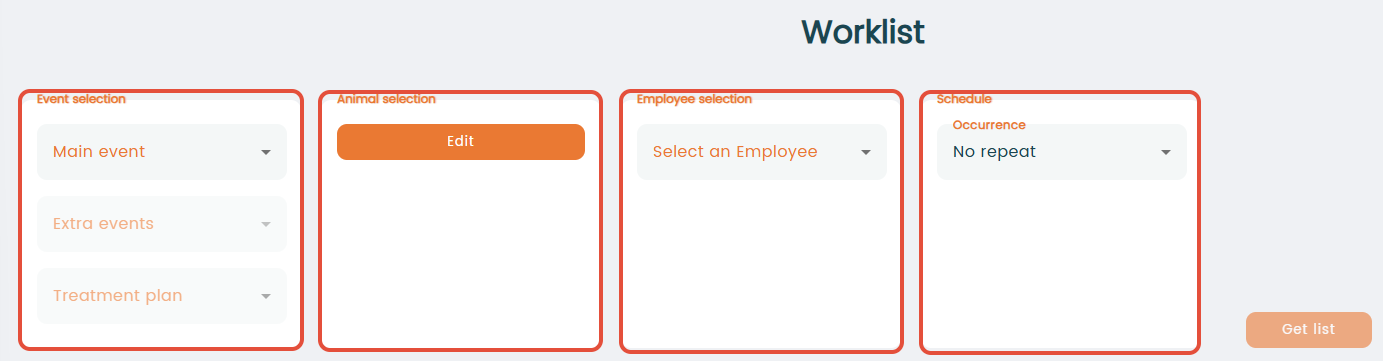
- "Event selection": Select a main event from the drop down menu. Depending on the chosen event the table will automatically adjust and it is possible to choose extra events.
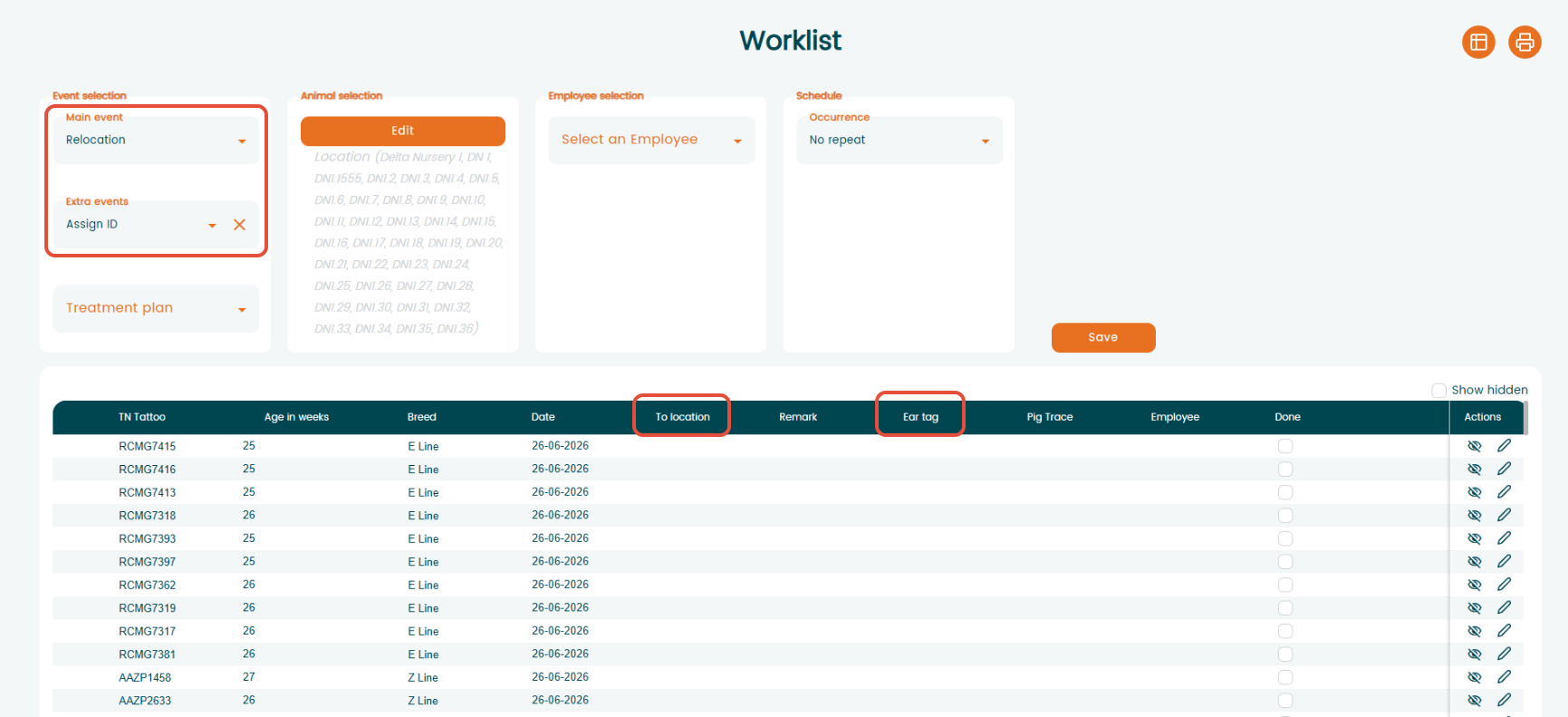
- "Extra events: Extra events allow you to register additional actions at the same time. The main event can be used to help streamline your workflow and reduce the number of separate registrations. For example, while registering a main event, you can also add a remark and/or record a relocation, assign ID in the same registration.
- "Extra events: Extra events allow you to register additional actions at the same time. The main event can be used to help streamline your workflow and reduce the number of separate registrations. For example, while registering a main event, you can also add a remark and/or record a relocation, assign ID in the same registration.
In the example below, "Relocation" is selected as the main event and "Assign ID" as the extra event. The registration table automatically adjusts, allowing you to record the relocation and assign an ID to the animal in a single registration.
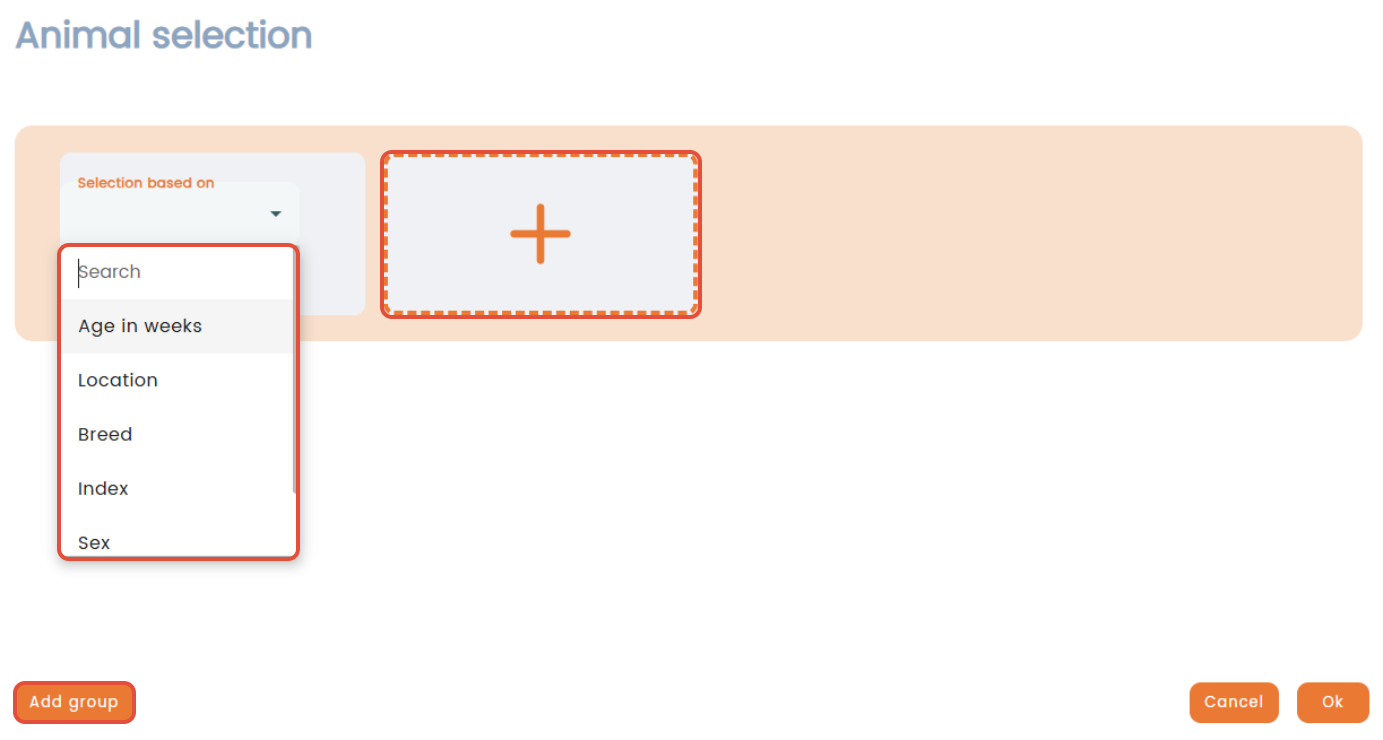
- "Animal selection": Here, you decide which animals should appear on the list. Click "Edit" to start the animal selection and choose a criteria in the drop down menu. When you have chosen your criteria, it is possible to specify your selected animals further and you can add another group of animals by pressing "Add group".
ln this example below, animals with last events of entry, abortion, weaning and negative pregnancy check will appear on a service worklist.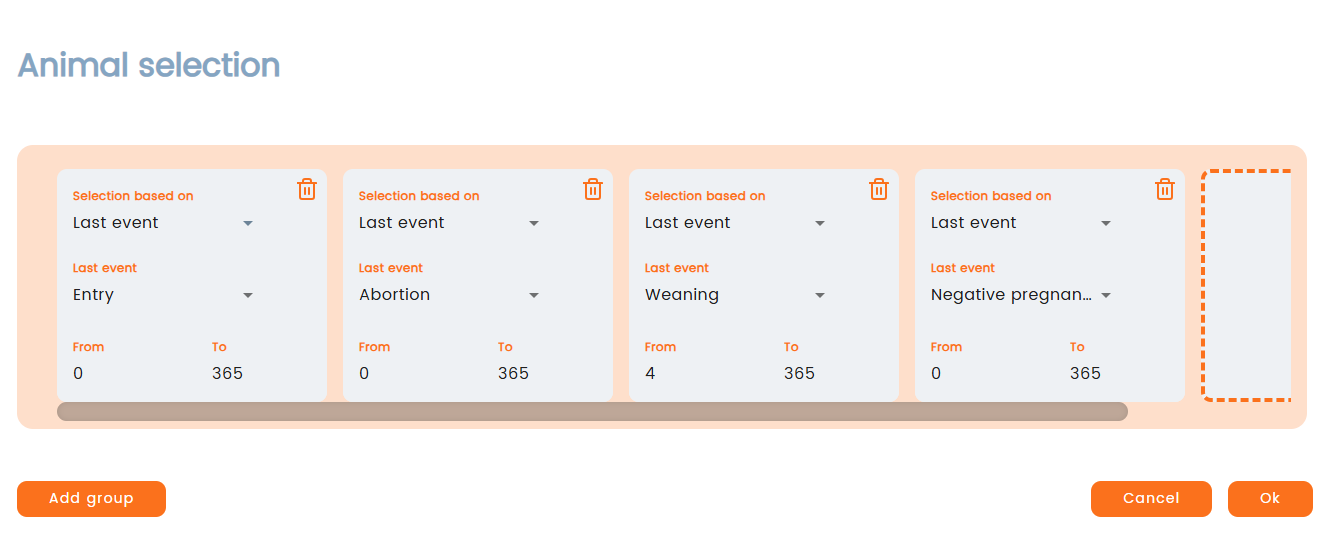
- "Employee selection": Choose an employee and the table will add the name of the employee to the list.
- "Schedule": Here, you choose when and how often the worklist list should occur. By selecting "Repeating", you choose how often it should be repeated (e.g. every Monday). Remember to press "Save".
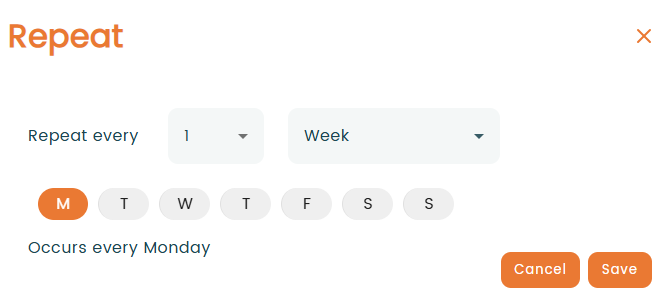
Save worklist
When all selections are finished, you can click "Get list", and your animals, based on the selection criteria, will appear on the list. You can save the list by clicking "Save" and afterwards name it.
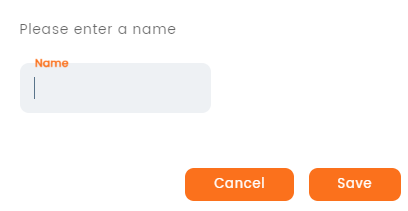
When you have named the worklist and saved it, it will appear whenever you enter the worklist menu.
Delete worklist
To delete a worklist created by you, simply go to the worklist menu, and click on the trash can icon of the chosen list.
Default worklist
This category will show already existing worklists. The main event is already chosen and cannot be changed, but it is possible to add extra events, edit animal selection, choose an employee and schedule occurrence.
Was this article helpful?
That’s Great!
Thank you for your feedback
Sorry! We couldn't be helpful
Thank you for your feedback
Feedback sent
We appreciate your effort and will try to fix the article